
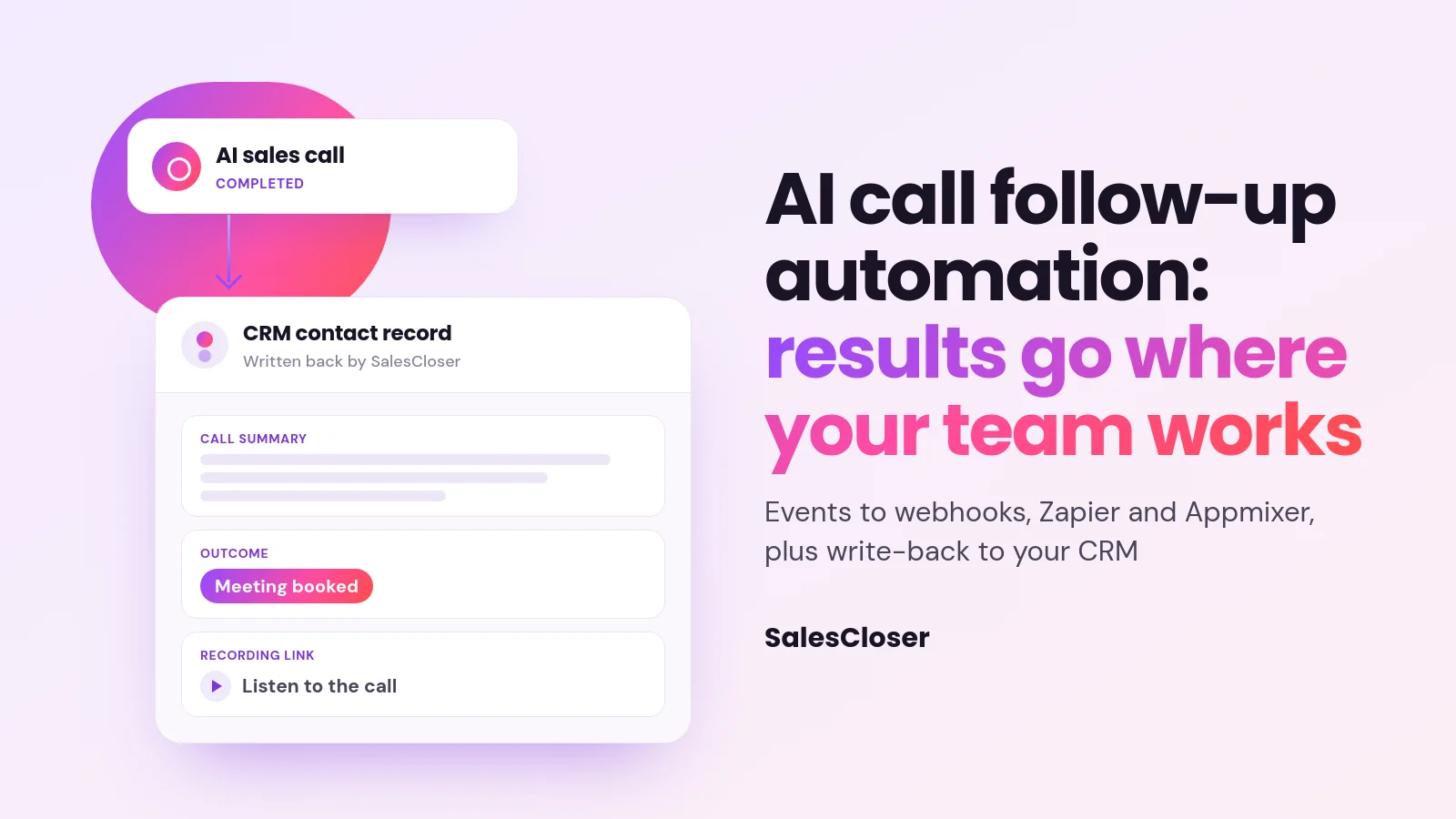
AI call follow-up automation sends the result of every AI sales call to the tools your team already uses, so nobody copies notes by hand. SalesCloser sends 14 event types to webhooks and Appmixer, connects to Zapier, and writes the call summary, outcome and recording link back to HubSpot, Pipedrive, GoHighLevel, Zoho, Zendesk and Intercom.
An AI sales agent can hold a good conversation, ask the right qualifying questions and book a meeting. Then the call ends, and the hard part starts. Someone has to log the outcome, update the lead, alert the right rep and trigger the next email. When that work is manual, it gets done late or not at all.
SalesCloser handles that handoff with after-call automation. Call results flow out as events to webhooks and automation tools, and a native write-back sends the summary, outcome and recording link into supported CRMs. This guide covers which events exist, which CRMs are supported, how to set it up and the limits to plan around.
What is AI call follow-up automation?
AI call follow-up automation is the set of actions that run on their own once an AI call finishes. The system sends structured call data to your other tools, and they take the next step.
On SalesCloser there are two parts. The first is events: messages sent to a webhook URL, Zapier or Appmixer when something happens, such as a call completing or a meeting being booked. The second is CRM write-back: a direct connection that records the call on the contact in your CRM.
Many teams use both. If you also want the agent to use apps while the call is still happening, see our guide to connecting your AI sales agent to your apps.
Why does follow-up after a sales call slip through the cracks?
Follow-up breaks down at the handoff. A rep has to find the call, review it, type a summary into the CRM, set a status and send the next message. Each step is small, and each one gets skipped on a busy day.
AI calls add volume. An agent answering inbound leads and running outbound campaigns can produce more conversations than a team can review by hand. Automation makes the call itself the trigger, because the outcome is already structured: a summary, next steps, how far the lead got and the lead’s status.
For a wider view of AI across the sales process, see our guide to AI for sales.
What events can trigger follow-up after an AI call?
SalesCloser sends 14 event types. These are the ones most teams build follow-up around:

- demo.completed: a call has finished. The payload includes the AI call summary, next steps, lead and agent details and, when there is one, the booking.
- conversion.reached: the lead completed a step you marked as a conversion in the agent’s flow.
- booking.scheduled: a meeting was booked during the conversation.
- recording.generated and audio_transcript.created: the recording or transcript is ready, with a recording link and the transcript content.
- lead.created, lead.updated and lead.status_updated: a lead was added or changed, including its status.
- campaign.completed: an outbound campaign finished, with totals such as completed calls, voicemails and completion rate, plus a link to the campaign report.
Other events cover a call starting, steps in the agent’s flow starting and completing, and inbound calls being received.
Which CRMs get call results written back automatically?
SalesCloser has native write-back for HubSpot, Pipedrive, GoHighLevel, Zoho, Zendesk and Intercom. Write-back sends the call summary, the outcome and the recording link to the lead’s record. It never writes the full transcript into the CRM. The table shows what lands where.

| CRM | What SalesCloser writes back |
|---|---|
| HubSpot | Creates or updates the contact by email, logs a call with the summary, duration and recording link, sets SalesCloser status properties, and adds a meeting if one was booked |
| Pipedrive | A call log shown as an activity, with a note holding the summary and next steps, plus a person field with the qualification status |
| GoHighLevel | Creates or updates the contact, adds a call entry for phone calls, a note with the summary and recording link, and a status field |
| Zoho | Creates or updates the lead and adds a record in the Calls module |
| Zendesk | A Talk call, a ticket comment and a ticket field |
| Intercom | A conversation plus contact attributes |
Write-back goes one way, from SalesCloser into the CRM. It runs when a call completes and when a lead is marked qualified or disqualified, or only for qualified leads if you prefer.
What about Salesforce? There is no native Salesforce write-back. Teams on Salesforce send call results through webhooks, Zapier or the SalesCloser API instead.
How do you turn on CRM write-back?
Setup happens in the Integrations area, and you need a Company, Manager or Editor role to see My Integrations. Here are the steps for HubSpot. The other CRMs follow the same pattern from their own card:

- Install the HubSpot integration from the SalesCloser marketplace or the HubSpot listing.
- In the sidebar, open Integrations, then the My Integrations tab.
- On the HubSpot card, click Turn on write-back and approve the second HubSpot permission request.
- Under Syncs:, choose Every completed call or Only qualified leads.
- Click Send a sample and check that the test record looks the way you expect in HubSpot.
From the same card you can Pause syncing or Disconnect at any time. Pause while you change qualification rules so test calls stay out of the CRM.
How do you send call events to your own webhook?
A webhook sends every event to one URL you choose. To set it up:
- In the sidebar, open Integrations and go to the Webhook Events tab.
- Paste your endpoint into Webhook URL.
- Turn on Use webhook signature if you want to verify that requests come from SalesCloser.
- Click Save Configuration.
- Click Test Webhook to send a test event and confirm your endpoint receives it.
Each request contains the event name and a data object with the payload and a timestamp. Your endpoint should check the event name and ignore what it does not need. The optional signature uses HMAC-SHA256 in an X-Webhook-Signature header.
How do Zapier and Appmixer fit in?
Zapier and Appmixer let you build follow-up workflows without writing code.
Zapier. Go to Integrations > API Tokens and click Generate API Key. Use that key to connect SalesCloser in Zapier, then build your Zap there. Events such as a completed call, a reached conversion or a booked meeting can start a Zap.
Appmixer. Open Integrations > Workflows to use the workflow designer built into SalesCloser, which is powered by Appmixer. Appmixer can receive all 14 event types, so you can build a workflow around any of them.
For completed calls, both tools let you narrow the trigger by agent, by campaign and by call status: answered, voicemail or unanswered. You can send voicemails to one sequence and answered calls to another, or listen only to calls from a single campaign.
What does after-call automation look like for the lead?
The lead never sees a webhook. They notice follow-up that is relevant and arrives while the conversation is fresh. A few flows teams build:
- A meeting is booked on the call. The booking.scheduled event alerts the account owner, and with HubSpot write-back the meeting appears on the contact.
- A call goes to voicemail. A Zap filtered on voicemail starts a short email sequence instead of waiting for a rep to notice.
- A lead reaches your conversion step. The conversion.reached event moves the deal forward and notifies sales in your team chat.
These are examples you configure in your own tools, not built-in sequences. If a lead wants a person during the call itself, that is a separate feature covered in our guide to AI to human handoff.
What are the limits to know before you set it up?
- No Salesforce write-back. Use webhooks, Zapier or the API for Salesforce.
- No transcripts in the CRM. Write-back sends the summary, next steps and recording link. The full transcript is in the recording and transcript events sent through webhooks, Zapier and Appmixer.
- One webhook URL, all events. You cannot choose events per URL, so filter on your side.
- Failed deliveries are retried, then removed. A failed webhook is retried up to five times. If your endpoint returns 404 or 410, it is removed and you get an email, so keep the URL live.
- Phone and web calls differ in GoHighLevel. The call entry is added for phone calls only. Web calls do not get one.
What are the best practices for AI call follow-up automation?
- Test before going live. Use Send a sample and Test Webhook to see real payloads in your tools.
- Verify signatures. Turn on Use webhook signature and check the header on your endpoint.
- Keep transcripts out of the CRM. Give reps summaries in the CRM, and pull full transcripts through events only when a workflow needs them.
- Review real calls. Conversations are recorded and transcribed so your team can review them. Spot-check that summaries and statuses match what happened.
How does SalesCloser fit?
SalesCloser AI sales agents hold real conversations by voice, video or chat. They answer inbound leads, run outbound campaigns, ask qualifying questions and book prospects onto your team’s calendar.
For outbound use cases, read our guide to AI agents for outbound sales. For the full list of connections, see the CRM integrations page.
See it on a demo. We can walk through a call, the events it sends and the record it writes in your CRM. Book a demo.
Frequently asked questions
What is AI call follow-up automation?
It is the actions that run on their own after an AI call ends. Call results go out as events to webhooks, Zapier and Appmixer, and are written back to supported CRMs, so your team does not copy notes by hand.
Does SalesCloser write call results to Salesforce?
Not natively. SalesCloser has native write-back for HubSpot, Pipedrive, GoHighLevel, Zoho, Zendesk and Intercom, but not Salesforce. Teams on Salesforce can send call results through webhooks, Zapier or the SalesCloser API.
Is the full call transcript sent to my CRM?
No. CRM write-back sends the call summary, outcome and recording link, never the full transcript. If a workflow needs the transcript, the recording and transcript events sent through webhooks, Zapier and Appmixer include the transcript content.
Which events can I use to trigger follow-up?
SalesCloser sends 14 event types. The most used are demo.completed for finished calls, conversion.reached, booking.scheduled, recording.generated, audio_transcript.created, the lead events and campaign.completed. Appmixer can use all 14.
Can I trigger different follow-up for voicemails and answered calls?
Yes. In Zapier and Appmixer, the completed call trigger can be narrowed by call status (answered, voicemail or unanswered), as well as by agent and campaign. With the native webhook, every event goes to one URL, so filter in your own system.