
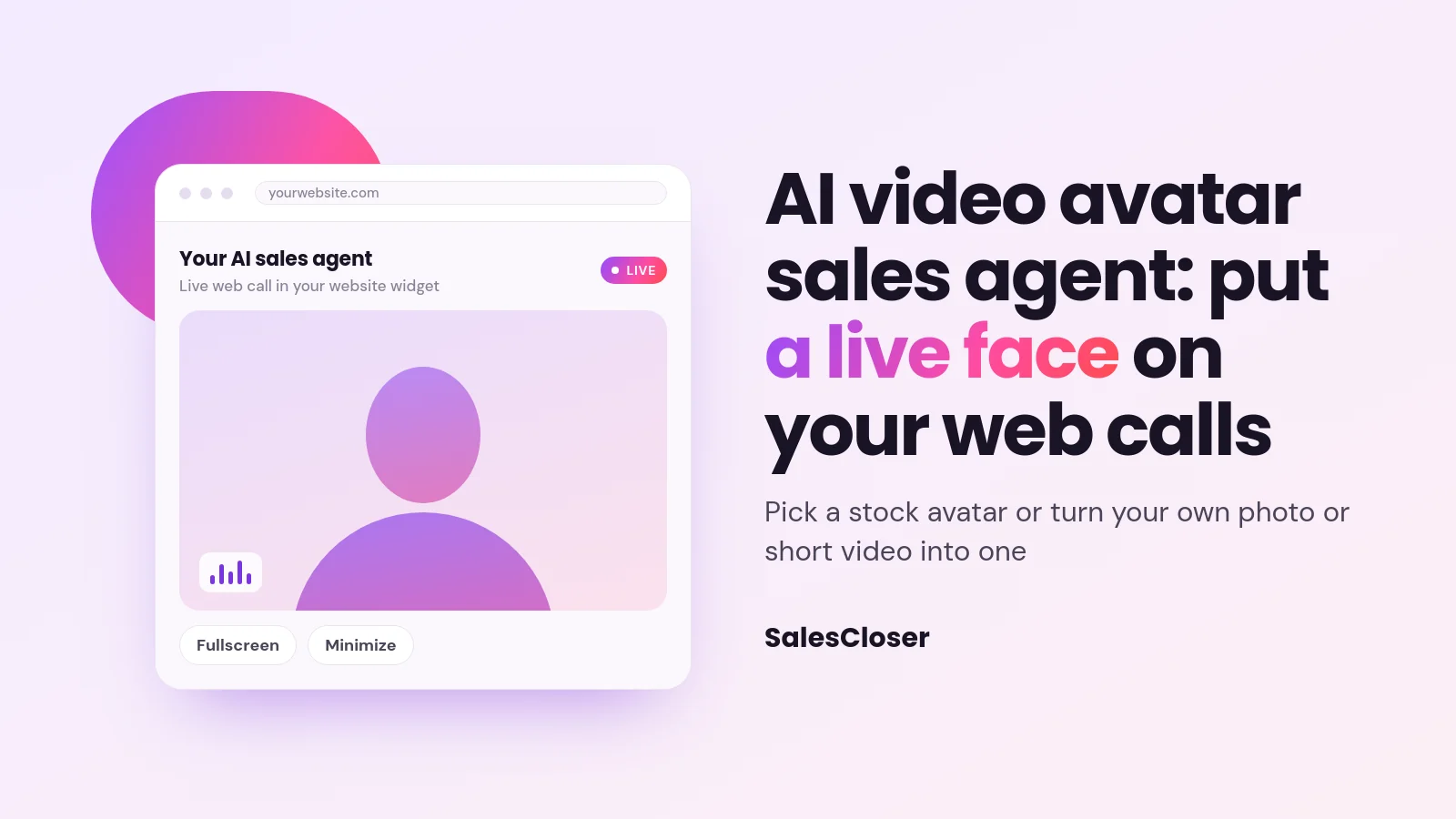
An AI video avatar sales agent is an AI agent that talks with buyers on a live web call through a moving, speaking face. On SalesCloser, you pick a Real-time AI Avatar from a gallery of stock avatars, or upload your own photo or a 10-60 second video, and it appears in your website widget and fullscreen web calls.
Text chat and voice calls cover most website conversations, but some buyers want to see who they are talking to. A face makes a conversation feel closer to a meeting, which is why many sales teams still push interested buyers toward a video call with a rep.
SalesCloser lets your AI sales agent show up as a live video avatar on browser-based calls. This guide covers what a live avatar is, where it appears, what the visitor experiences, how to use your own face, how to set it up, and the limits to plan around.
What is an AI video avatar sales agent?
An AI video avatar sales agent is an AI agent that holds a conversation through a moving, speaking face rather than through text or audio alone. The avatar is live during the call, so the visitor sees the agent talking as it answers their questions.
In SalesCloser, the avatar is part of the agent’s Visual Customization step. Each agent has three choices: No avatar, Static Image Avatar or Real-time AI Avatar. Only the last one gives you a live, moving avatar. The other two suit agents where a still picture, or no picture at all, is enough.
Live avatars run on browser-based calls, meaning calls that happen inside your website widget or through a web call link. If you are new to the widget itself, start with our guide to the AI chat widget with voice and video.
Why put a face on your AI sales agent?
Buyers judge a conversation by how it feels as much as by what is said. A visible face gives the visitor something to focus on, and it makes a web call feel more like a meeting with a person than a chat box on a page.
A face also helps your brand. If your founder or a well-known rep is already the face buyers see in your videos and posts, they can be the face of your agent too. A consistent face across your site and your calls is easier to remember than a generic chat icon.
A face does not replace good answers. The avatar changes how the conversation looks; the agent’s prompt and instructions still decide what it says. For a wider view of where AI fits across the sales process, see our guide to AI for sales.
Where does the live avatar appear?
The live avatar shows wherever the agent runs a browser call: in the website widget, in a fullscreen call and through a direct web call link you share. Every widget style is built on the same widget, so the avatar can show in each one, but some styles depend on the agent type.

| Where | Which agents | What to know |
|---|---|---|
| Floating widget style | Web call and hybrid agents | Has an in-call Fullscreen toggle |
| Inline widget style | Web call and hybrid agents | Sits in your page and has an in-call Fullscreen toggle |
| Bottom bar widget style | Hybrid agents only | Set it under Style in Share Call > Widget |
| Sidebar widget style | Hybrid agents only | Full-bleed layout by design |
| Fullscreen widget style | Hybrid agents only | Full-bleed layout by design |
| Web Call Link | Web call and hybrid agents | A direct link that starts a live web call with the agent |
Bottom bar, Fullscreen and Sidebar need a hybrid agent, the type that combines text chat with calls in one widget.
Phone calls are different. The avatar is shown during browser-based calls only, so a lead who calls your phone number, or gets an outbound phone call from the agent, does not see an avatar.
What does a visitor experience on a live avatar call?
Before the call starts, the hero area of the widget plays a silent idle loop of the avatar. The visitor sees who they are about to talk to, without any sound starting on its own.
When the visitor starts the call, the live avatar tile stays hidden until the avatar starts speaking. That way the visitor is not left looking at an empty or frozen frame while the call gets going.
In floating and inline calls, the visitor can switch to Fullscreen during the call and go back with Minimize. The Fullscreen and Sidebar styles are full-bleed by design, so the avatar already has the space. Conversations are recorded and transcribed so your team can review them.
Can you use your own face as the AI avatar?
Yes. Next to the stock avatars, the picker has an Upload your own tile, described in the app as “A picture or short video becomes your avatar.” It is self-serve: you upload the file in the dashboard yourself, with no need to book a session with our team.

You can upload a photo or a short video. These are the requirements:
- Photo: JPG, PNG or WebP, at least 512 pixels on the short side.
- Video: MP4, MOV, WebM or M4V, between 10 and 60 seconds long.
- File size: up to 200 MB.
- Consent: you must tick the consent checkbox before the upload goes through.
According to the app, creating the avatar usually takes a minute or two. When it is ready, your custom avatar appears in the picker next to the stock avatars, so you can choose it for your agents. Custom avatars that have been shared with your account show up there as well.
Own-face avatars are available on every plan, the same as stock avatars. The one exception is white-label accounts, where the Upload your own option is not shown. You can see examples on the video avatars feature page.
How do you set up a live AI avatar?
Setup happens in the agent editor. You need a browser agent, either a web call agent or a hybrid agent, because the avatar only shows on browser-based calls. Then follow these steps:

- Go to AI Agents and create a new agent, or edit an existing one.
- Open the Visual Customization step and choose Real-time AI Avatar.
- Pick a face from Featured avatars, Recommended for You or Explore all avatars.
- To use your own face instead, click Upload your own under Featured avatars. Enter a Name, use Choose a photo or video, tick the consent checkbox and upload.
- On the agent card, open Share Call. Choose Widget to pick a Style, or Web Call Link to send a direct link that starts a live web call.
- Try it on the Test Widget page with test data before you add it to your site.
The picker does not tell you which technology renders each avatar. You choose by how the avatar looks and fits your brand, not by vendor.
What are the limits of live AI avatars?
Plan around these limits before you launch:
- Browser calls only. Avatars show in the widget, fullscreen calls and web call links, not on phone calls.
- Agent type matters. Web call agents get Floating and Inline. Bottom bar, Fullscreen and Sidebar need a hybrid agent.
- Upload rules. Photos need at least 512 pixels on the short side, videos must run 10 to 60 seconds, and files can be up to 200 MB.
- White-label accounts. The Upload your own option is hidden on white-label accounts.
- Minutes. Avatar calls use minutes from your plan, as voice and video calls do.
How do you get the most out of an AI video avatar?
A few habits make a live avatar look better and earn more trust:
- Start with a clear source. A sharp, well-lit photo or video of one face looking at the camera gives the avatar a clean starting point.
- Only upload faces you may use. Use your own face, or a teammate who has agreed. The consent checkbox exists for this reason.
- Be open about the AI. You control how the agent introduces itself, including whether it says it is an AI up front, and you can tell it to always answer truthfully when asked.
- Match face and voice. Pick a voice that fits the avatar and your audience. Our guide to natural AI voice agents covers choosing one.
- Test every layout you use. Check each style on the Test Widget page before going live.
How does SalesCloser fit?
SalesCloser AI sales agents talk with buyers on your website and on web calls. Live avatars add a face to those browser calls. Pick a stock avatar from the gallery or turn your own photo or short video into one, and it appears in the widget, in fullscreen calls and on shared web call links.
See it on a demo: we can show you a live avatar in the website widget and in a fullscreen web call. Book a demo to watch an agent with a face take a real conversation.
Frequently asked questions
Can I make an AI avatar from a photo?
Yes. In the Real-time AI Avatar picker, click Upload your own and add a JPG, PNG or WebP photo at least 512 pixels on the short side. You can also upload a 10-60 second video instead. Tick the consent checkbox, and the app says the avatar usually takes a minute or two.
Can I use a video of myself instead of a photo?
Yes. Upload an MP4, MOV, WebM or M4V video between 10 and 60 seconds long, up to 200 MB. Use a clear, steady shot of one face. When the avatar is ready, it appears in the picker next to the stock avatars.
Does the AI avatar appear on phone calls?
No. The avatar shows only on browser-based calls: in the website widget, in fullscreen calls and on web call links from Share Call. Leads on phone calls talk with the agent without seeing an avatar.
Which widget styles show the live avatar?
All of them. Web call agents can use the Floating and Inline styles, and hybrid agents can also use Bottom bar, Fullscreen and Sidebar. In floating and inline calls, the visitor can switch to Fullscreen and back with Minimize.
Are live avatars included on every plan?
Yes. Stock avatars and your own uploaded avatar are available on every plan. The exception is white-label accounts, where the Upload your own option is not shown. Avatar calls use minutes from your plan, like voice and video calls.