Video avatars: face-to-face AI sales conversations
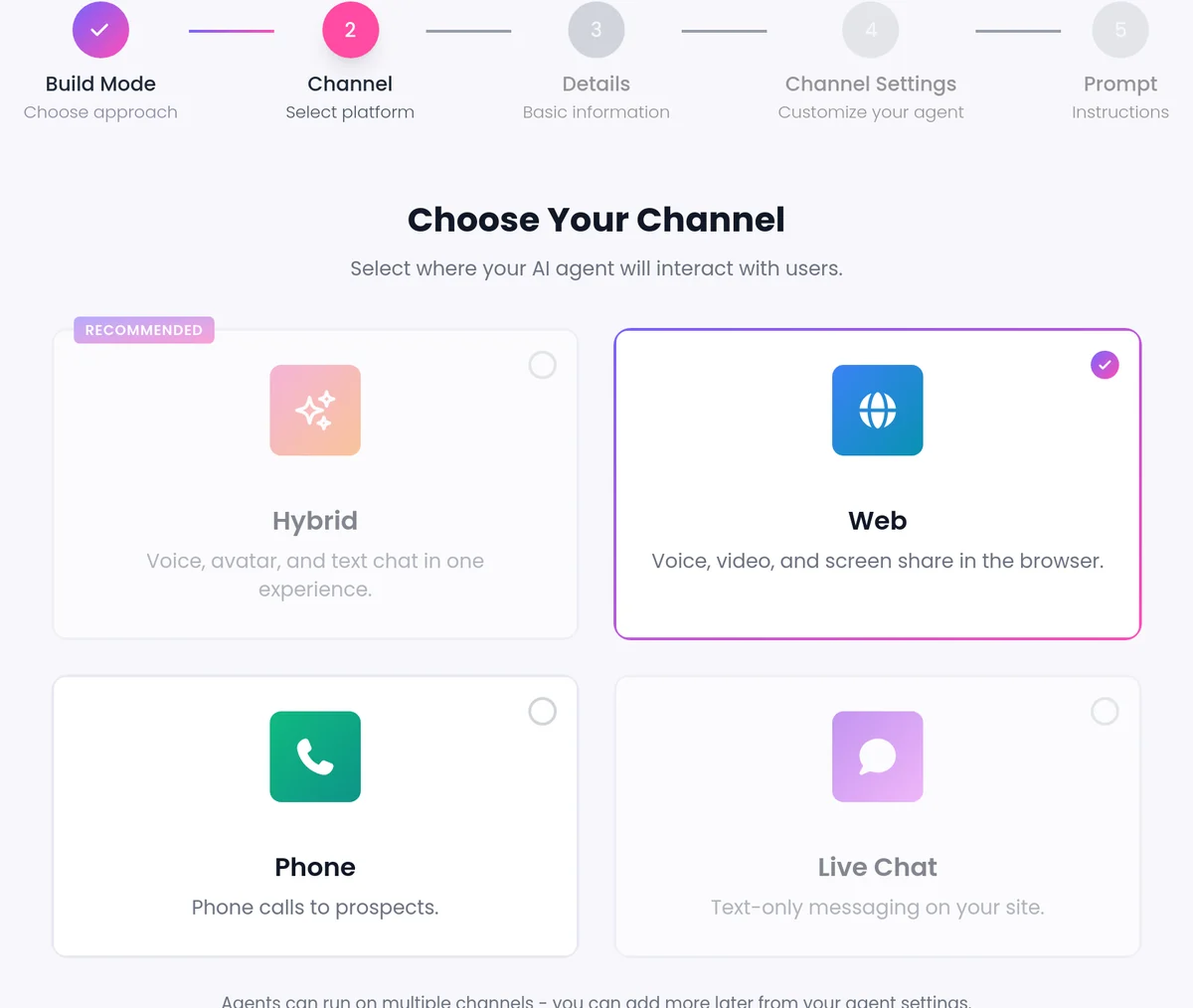
SalesCloser video agents meet your visitors face to face in the browser, with no download needed. Pick a lifelike stock avatar that moves and reacts naturally, or use a custom avatar of your own face or a brand character. In the website widget, the avatar moves live instead of showing a still image.
- Face to face in the browser
- No download
- Stock or custom avatar
- Bring in your team
What it is
What are video avatars?
A video avatar is the face of your AI sales agent on a video call. The visitor sees and hears the agent, talks back, and gets answers from the knowledge you gave it, the same as on chat or voice.
Some buyers want a quick typed answer. Others, especially those close to a decision, want the feel of a real meeting before they share details about their business. A video agent gives them that while they are on your site.
How does a video call work for the visitor?
- 1
Start in the browser
From your widget or a landing page, which can open straight into a call. With a pre-call form, a few details first, in the agent's language.
- 2
The avatar greets them
Full screen is one tap away. Controls float over the picture, and collapsing never interrupts the call.
- 3
Tap or type instead of spelling
Choice and link buttons appear in the call. Asked for an email or phone number, the visitor types it in the chat panel.
- 4
Demo videos and screen share
The agent plays your recorded demo videos on screen and can see a screen the visitor chooses to share.
- 5
A rep joins when it's time
When the buyer is ready for a person, the agent can bring a rep from your team into the same call.
Stock or custom avatar?
Stock avatars
A gallery of ready-made avatars that move and react naturally.
- Pick one when you build or edit the agent
- Ready to use as they are
Custom avatars
Your own face or a brand character, including white-label avatars.
- Ask our team about a custom avatar
How do you set up a video agent?
Run a few test calls yourself before you go live.
- 1
Create the agent
In AI Agents, create an agent that takes voice and video calls, or a Hybrid agent if you also want chat in the same widget.
- 2
Pick an avatar and a voice
Choose from the avatar gallery and preview each voice before you save.
- 3
Give it knowledge and rules
Your website, documents, FAQs and the questions it should ask.
- 4
Test it, then add it to your site
Try a call on the Test Widget page. Then, on the agent card, open Share Call, then Widget, choose a Style and copy the code.
- 5
Optional: let reps join
Turn on the Waiting Room under Account Settings > AI Agents > Waiting Room, then Bring in a human on the agent.
On the call
Bring more people into the call
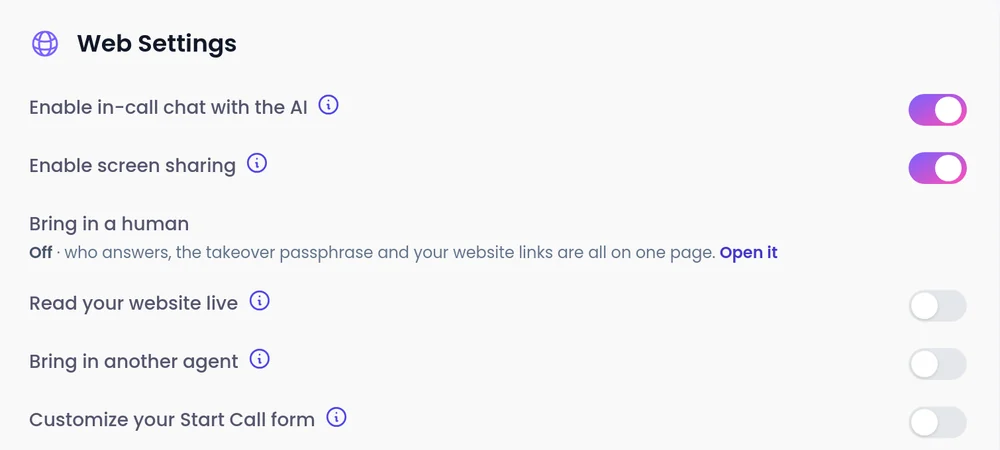
Web calls can include your team and your other agents, set from the agent's Web Settings.
- A rep from your team. The agent alerts an available rep in the Waiting Room. The rep listens in with a running summary, then takes over with one click. More than one rep can join the same web call.
- Another AI agent. Allow an agent to invite one of your other agents, such as a specialist for a product line. They take turns, and each shows its own avatar.
- Reps who don't speak the language. Reps follow a call in another language through a live English transcript, and switch back to the original wording in one click. Agents speak with leads in 50+ languages.
What should you know before you launch?
Browser calls
Video calls run in the browser on your website or landing pages.
Live avatar in the widget
The moving avatar appears in the widget on agents set up with a realtime avatar.
A rep has to be present
Handoff needs a covering rep in the Waiting Room. If nobody is there, the agent carries on alone, so never promise that a person is always available.
Recording
Conversations are recorded and transcribed so your team can review them.
AI disclosure
You control how the agent introduces itself, including whether it says it is an AI up front, and you can tell it to always answer truthfully when asked.
Best practices
Match your audience
Pick an avatar that fits your audience and your brand.
Keep the opening short
Greet, ask one question and listen.
Go where intent is high
Put video on pricing or demo pages.
Review the first week
Watch recordings and adjust the agent's instructions.
FAQ
Still wondering about something? Ask us on the call. We'll build your agent while we talk.
Do visitors need to install anything for a video call?
No. Video calls run in the browser, with no download needed.
Can I use my own face as the avatar?
Yes. You can use a custom avatar of your own face or a brand character, including white-label avatars. Ask our team to set it up.
Can the visitor switch from chat to video?
Yes. With a Hybrid agent, the visitor can start typing and switch to a video call with the same agent without losing the thread.
Can a person join the video call?
Yes. With the Waiting Room on, the agent can bring an available rep into the live call, and the rep can take over with one click.
Meet a video agent
Book a demo and talk face to face with an AI sales agent built for a business like yours.