
Integrating SalesCloser AI with Salesforce for Seamless Automation
A Complete Guide
Getting Started with Integrating SalesCloser AI with Salesforce
Unlock the power of automation by integrating SalesCloser AI with Salesforce through Zapier.
This integration allows users to create automated workflows, known as Zaps, enabling efficient lead engagement and follow-ups without coding.

Understanding the Key Integration Points
Manual follow-ups and data discrepancies complicate lead management. SalesCloser AI offers no-code automated workflows, real-time lead status updates, and efficient engagement through automated follow-ups.
Common Challenges and How SalesCloser AI Solves Them
Traditional Challenges:
Integrating SalesCloser AI with Salesforce can streamline lead management. Key challenges include manual follow-ups and data discrepancies.
SalesCloser AI Solutions:
Solutions provided by SalesCloser AI include:
• No-code automated workflows
• Real-time updates on lead status
• Efficient engagement through follow-ups
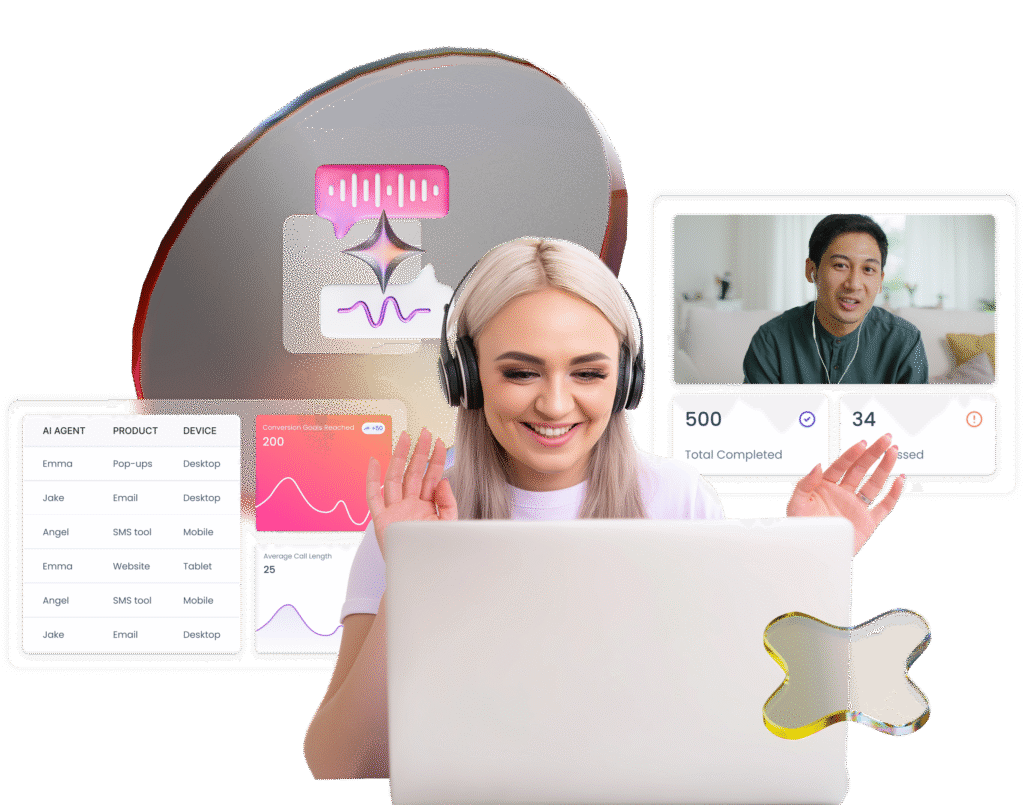
Unlock The Power Of AI Sales Conversations
Say goodbye to missed opportunities — let AI handle your leads while you focus on closing.
Who This Guide Is For
This guide is beneficial for:
• Sales Teams looking to enhance lead engagement
• Marketing Teams aiming for automated follow-up campaigns
• Customer Support Teams managing lead inquiries
Setting Up Your Automated Workflows
Follow these steps to configure your automated workflows between Salesforce and SalesCloser AI.
Step 1: Create a New Zap
Begin by logging into your Zapier account. Create a new Zap by selecting Salesforce as the trigger app. Consider the event type you want to automate, such as:
• Lead Status Updated
• New Lead
Step 2: Choose Your Trigger Event
Decide on the trigger event that will initiate the Zap. Common choices include:
• Updates in lead status
• Addition of new leads
This allows you to capture relevant changes in real-time.
Step 3: Select Actions in SalesCloser AI
After setting the trigger, choose corresponding actions in SalesCloser AI, such as:
• Add Contact to Campaign
• Make Outbound Call
This ensures that every trigger results in a specific action, maintaining engagement.
Step 4: Test and Activate Your Zap
Test your Zap to ensure functionality. Once confirmed, activate it for automatic lead engagement.
Tip: Regularly review and update your Zaps based on team feedback.
SalesCloser AI Solution: Automated Follow-Ups
SalesCloser AI enables automated follow-ups based on Salesforce triggers, ensuring timely engagement with leads.
Streamlined Communication
Key aspects of follow-up automation include:
• Sending emails upon call completion
• Making outbound calls after demos
This keeps leads engaged and informs them promptly.
Integration with Other Platforms
SalesCloser AI also integrates seamlessly with HubSpot and Google Sheets. For instance, updating deals in HubSpot with new transcripts enhances data accuracy and accessibility.
SalesCloser AI Solution: Measuring Performance
Tracking performance allows teams to refine their strategies and improve lead engagement.
Conversion Rates
Monitoring conversion rates helps assess the effectiveness of your automated follow-ups.
Response Time
Measuring response times can identify bottlenecks in the engagement process.
Lead Engagement Levels
Analyzing engagement levels provides insights into the success of communication strategies.
Follow-Up Frequency
Tracking follow-up frequency ensures that leads are not neglected, optimizing engagement.
Strategy for Effective Lead Engagement
Employing a structured strategy enhances lead engagement significantly.
Targeted Communication
Utilize specific triggers to send tailored communication to leads, improving the relevance of messages.
Regular Updates
Keep your team informed about lead status through automated updates, enhancing team collaboration.
Feedback Loop Implementation
Implement feedback loops to refine automated processes continuously and improve lead interaction.
Step Into The Future Of Closing
SalesCloser AI empowers your team with AI-driven insights to convert more prospects into customers.

Real-World Automated Workflow Examples
Scenario 1: New Lead Trigger
When a new lead is added in Salesforce, an automated email is sent to welcome the lead, followed by a call to discuss their needs.

Scenario 2: Lead Status Update
Upon a lead status update, an alert is sent to the sales team, and follow-up tasks are created in SalesCloser AI.

Scenario 3: Demo Call Completion
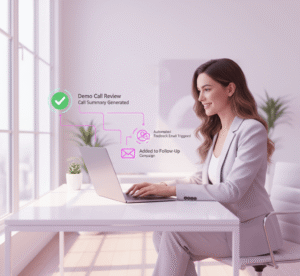
After a demo call, an automated email is sent to gather feedback, and the lead is added to a follow-up campaign.
Best Practices
Best Practice 1: Ensure Clear Triggers
Define clear trigger events in Salesforce to ensure accurate automation.
Best Practice 2: Regularly Review Automation
Schedule regular reviews of your automated workflows to optimize performance and engagement.
Best Practice 3: Utilize Testing Features
Make use of testing features in Zapier to validate your Zaps before going live.
Summary
Integrating SalesCloser AI with Salesforce enhances lead management through automated workflows, ensuring efficient follow-ups and engagement.
Key Takeaways:
• Leverage no-code automation for lead engagement.
• Utilize multiple trigger events for tailored actions.
• Measure performance to refine strategies.