
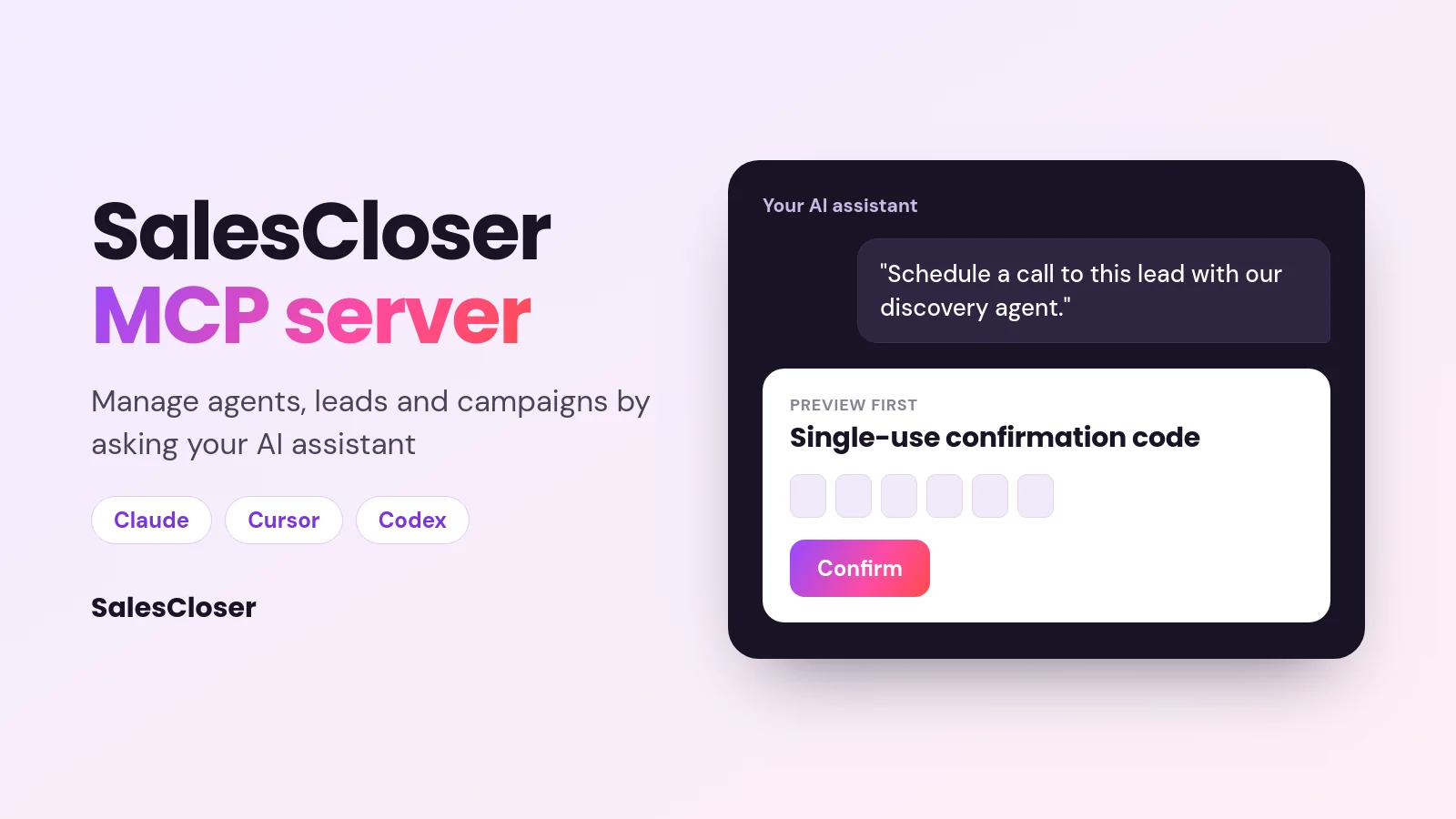
The SalesCloser MCP server lets AI assistants such as Claude, Cursor and Codex work with your SalesCloser account. Ask in plain language and the assistant can look up and change agents, leads, knowledge bases and campaigns, recap recent calls, and place or schedule calls. Anything that spends credits or deletes data waits for your confirmation.
Most sales and ops teams now keep an AI assistant open all day. They draft emails in it, think through plans with it and, more and more, let it work inside the tools they use. The question is how to point that assistant at your sales data without copying and pasting between tabs.
The SalesCloser MCP server answers that. It connects Claude, Cursor, Codex and other MCP clients to your SalesCloser account, so you can ask for what you need in plain language. This guide covers what it does, example requests, setup step by step, the safety checks, the limits and how it compares with the REST API.
What is an MCP server, and what does the SalesCloser one do?
MCP stands for Model Context Protocol. It is a standard way for an AI assistant to connect to outside tools and data. An MCP server is the piece that sits on the tool side: it tells the assistant which actions are available and runs them when the assistant asks.
The SalesCloser MCP server gives your assistant a set of tools for your own account. It can look up and change agents, leads, knowledge bases and campaigns, summarize campaign performance, recap recent call outcomes, and place or schedule a real outbound call. You never call these tools yourself. The assistant picks the right one for what you ask.
If you have searched for “mcp for sales” or “connect Claude to CRM”, this is the same idea applied to your AI sales agents. SalesCloser is not a CRM, but it holds the agents, leads, campaigns and call records your assistant needs to answer sales questions and take the next step.
What can you ask your AI assistant to do in SalesCloser?
Here are examples of requests a sales or ops person might type. Each one maps to an action the SalesCloser MCP server supports. The wording is up to you; the assistant works out which tool to use.
- Build an agent: “Create a discovery agent for our company, using this prompt, this voice and this knowledge base.”
- Update an agent: “Change the opening of our demo agent’s prompt and slow its voice down a little.”
- Feed the knowledge base: “Add this pricing FAQ text to the knowledge base our support agent uses.”
- Add and tidy leads: “Add this lead with their phone number, email and company, then set their status.”
- Triage: “Which leads still need attention? Start with the oldest.”
- Build a campaign: “Create a campaign for these leads with our outbound agent, scheduled for tomorrow morning.”
- Check how calls went: “Recap call outcomes from the last seven days” or “How are my recent campaigns performing?”
- Schedule or place calls: “Schedule a call to this lead with our discovery agent” or “Call this lead now.”
Placing or scheduling a call, and setting a campaign live, use credits. For those, the assistant shows you a preview first and only goes ahead once you confirm. More on that below.
How do you connect Claude, Cursor or Codex to SalesCloser?
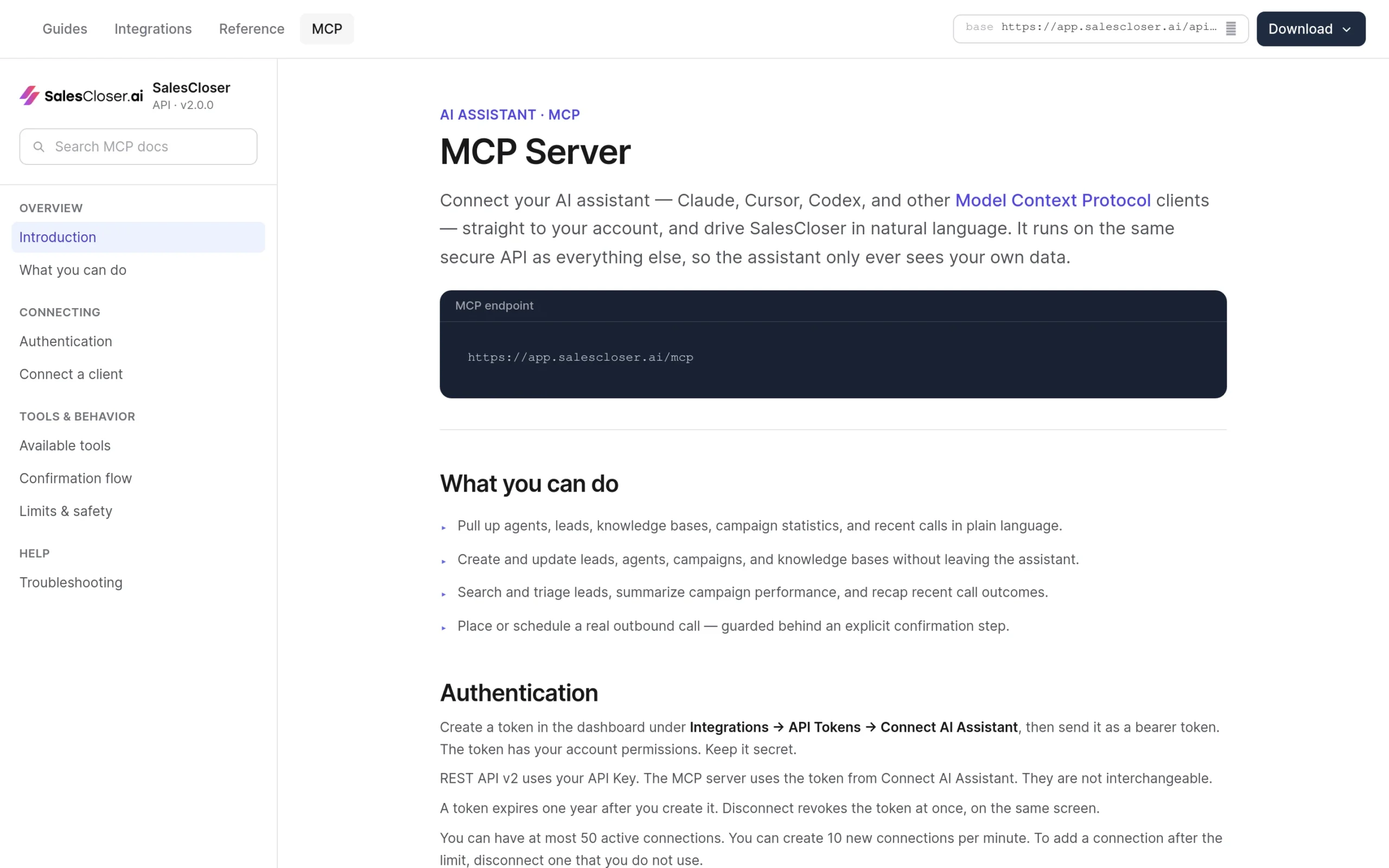
Setup takes a few steps. You create a token in SalesCloser, then give your assistant the endpoint and the token using the snippet for your client. The public MCP guide has a ready snippet for Claude Code, Claude Desktop, Codex and other clients.
- In your SalesCloser dashboard, go to Integrations > API Tokens > Connect AI Assistant.
- Generate a token. Keep it secret: it carries your account permissions.
- Open the public MCP guide, choose your client (Claude Code, Claude Desktop, Codex or Other clients) and copy its snippet.
- Swap YOUR_TOKEN in the snippet for the token you just created, then paste the snippet into your assistant as described below.
- Ask the assistant to test the connection. The server has a simple ping tool that answers “pong” when the token works.
Every snippet points at the SalesCloser MCP endpoint (shown at the top of the guide) and sends your token as a bearer token in this header:
Authorization: Bearer YOUR_TOKENClaude Code
Run the command from the guide in your terminal. It adds an HTTP server named salescloser with the endpoint and your Authorization header. Its shape is:
claude mcp add --transport http salescloser \
  "MCP_ENDPOINT_URL" \
  --header "Authorization: Bearer YOUR_TOKEN"
Here MCP_ENDPOINT_URL stands for the endpoint address in the guide.
Claude Desktop, Cursor and other clients
For Claude Desktop, add the JSON snippet from the guide to claude_desktop_config.json, then restart Claude Desktop. For Cursor and other MCP clients, use the Other clients snippet and add it to the assistant’s MCP settings file. Both snippets need Node.js on your computer. Keep that file private, because it holds your token.
Codex
The Codex snippet first sets your token in an environment variable called SALESCLOSER_MCP_TOKEN, then runs codex mcp add to register the server. Codex writes it to its config file and reads the token from that variable each time it connects.
How does SalesCloser keep AI assistant actions safe?
Letting an assistant act on real data needs guardrails. The SalesCloser MCP server has three main ones: confirmation for costly or destructive actions, account scoping on every request, and tokens you can revoke at any time.

Confirmation before spending credits or deleting. Placing a call now, scheduling a call, setting a campaign live, archiving an agent and deleting a knowledge base file never run on the first try. The first request returns a preview and a single-use confirmation code. Nothing happens unless the assistant sends the same request again with that code within 10 minutes.
In practice, your assistant shows you the preview and asks whether to go ahead. Read it before you say yes. Archiving an agent also removes its phone number, and unarchiving does not give the number back.
Your account only. Every request is scoped to your account and audited. Records that belong to anyone else come back as not found, so the assistant cannot see or change another account’s data.
Token scope and expiry. The token has your account permissions, so treat it like a password. It expires one year after you create it. Disconnect, on the same screen where you created it, revokes the token at once.
What limits apply to tokens and connections?
The limits are there to keep usage predictable. Lists also come back in pages, so long results are never cut off without warning.
- Access needs an active subscription. If billing is inactive, the connection works again once it is active.
- Up to 50 active connections. To add one past the limit, disconnect one you do not use.
- Up to 10 new connections per minute.
- 60 tool calls per minute per token, and at most 120 requests per minute per user. Over these, the server tells the assistant when to try again.
- Lists return up to 50 rows per page, with a cursor to fetch the next page.
Who can create an MCP token?
Creating tokens under Connect AI Assistant is meant for company admins and managers. If you do not see the option under Integrations, ask an admin on your SalesCloser account. The token acts with your account permissions, so only create one for an assistant you trust and control.
What is the difference between MCP and the SalesCloser REST API?
Both connect outside software to SalesCloser, but they suit different jobs. MCP is for working in plain language through an AI assistant. The REST API is for software you or your developers build. They use different credentials and are not interchangeable.

| MCP server | REST API | |
|---|---|---|
| Best for | Asking an AI assistant to look things up and act for you | Integrations and automations your developers write |
| How you work | Plain-language requests in Claude, Cursor, Codex or another MCP client | Code that calls the API directly |
| Credential | Token from Integrations > API Tokens > Connect AI Assistant | Your API Key |
| Token lifetime | Expires one year after creation; Disconnect revokes it at once | See the REST API documentation |
| Confirmation step | Preview and confirmation code before costly or destructive actions | Your own code decides what it sends |
| Interchangeable? | No: an API Key will not connect to MCP | No: use your API Key, not an MCP token |
If you try to use your REST API Key with the MCP server, it will not connect. Create a token through Connect AI Assistant instead.
What should you check if the connection does not work?
- “This token cannot connect to the MCP server”: you used a token that is not an MCP token, such as a REST API Key.
- “Unauthenticated”: the token is missing, has expired or was disconnected.
- “No active SalesCloser account for this user”: the token belongs to someone who is not an active member of the account.
- “This SalesCloser subscription is inactive”: the account needs an active subscription.
- “Not found”: the id does not belong to your account.
Where does MCP fit in your sales workflow?
MCP does not change what your AI sales agents do on calls. It changes how you manage them. Instead of clicking through screens to build an agent, load leads or check campaign results, you can ask your assistant and review what it proposes.
For the bigger picture, see our guides to AI for sales, sales automation and building an AI sales team. To see SalesCloser agents in action, book a demo.
To get started, create a token under Integrations > API Tokens > Connect AI Assistant and follow the public MCP guide. Remember that it needs an active subscription.
Frequently asked questions
Which AI assistants work with the SalesCloser MCP server?
Claude, Cursor, Codex and other Model Context Protocol clients can connect. The public MCP guide has ready snippets for Claude Code, Claude Desktop and Codex, plus a general snippet for other clients that you add to the assistant’s MCP settings file. The Claude Desktop and general snippets need Node.js on your computer.
Do I need a paid plan to use the SalesCloser MCP server?
The MCP server needs an active subscription. If the subscription is inactive, the assistant gets an error saying so, and the connection works again once billing is active. You also need a token created under Integrations, API Tokens, Connect AI Assistant.
Can my AI assistant place calls without asking me?
No. Placing a call now, scheduling a call and setting a campaign live all require confirmation, as do archiving an agent and deleting a knowledge base file. The first request returns a preview and a single-use code, and nothing happens unless the assistant sends the request again with that code within 10 minutes.
How long does a SalesCloser MCP token last, and how do I revoke it?
A token expires one year after you create it. You can revoke it at any time with Disconnect, on the same screen where you created it, and it stops working at once. The token carries your account permissions, so keep it private and disconnect any you no longer use.
Can I use my SalesCloser REST API key with MCP?
No. The REST API uses your API Key, while the MCP server uses the token from Connect AI Assistant, and they are not interchangeable. If you send an API Key to the MCP server, it answers that the token cannot connect and points you to Connect AI Assistant to create the right one.