
AI call transfer lets an AI phone agent hand a live call to a person on your team when the caller is ready. On SalesCloser, it works on inbound and outbound phone calls. The agent transfers to a number you set or to the lead’s own rep from the lead record, with backup numbers and built-in safeguards.
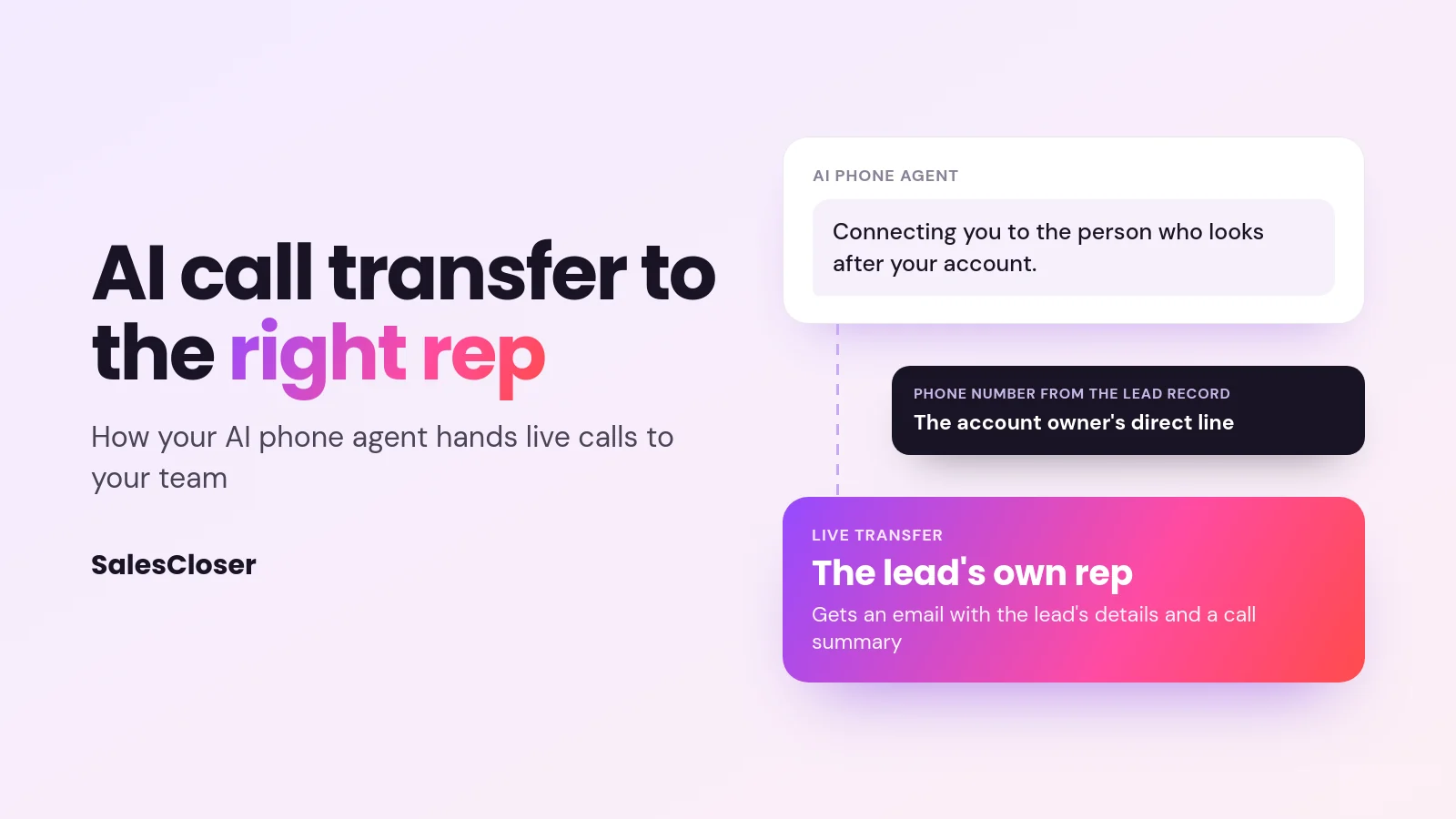
An AI phone agent can answer questions, qualify a lead and book a meeting. But some callers want a person, and many leads already have one: the rep who owns their account. If the agent cannot connect them, the caller hangs up with a promise of a callback, and the moment is gone.
SalesCloser call transfer lets the agent pass the live call to your team. The destination can be a number you set, or the lead’s own rep, read from a field on the lead record. This guide covers how it works, what your rep receives, setup and best practices.
What is AI call transfer?
AI call transfer is when an AI agent on a phone call moves the caller to a human. The agent handles the first part of the conversation, and a person takes over when the caller is ready for one. It is often called a live transfer, because the caller stays on the line instead of waiting for a callback.
A cold transfer passes the caller along with no background. A warm transfer means the person who picks up already knows something about the caller. On SalesCloser, your rep gets an email with the lead’s details and a call summary.
Call transfer works on inbound and outbound phone calls. The setting says it plainly: “Only for agents that take phone calls.” For web voice, video and hybrid calls in a browser, a person joins through Bring in a human instead, which is covered in our guide to AI to human handoff.
Why route calls to the lead’s own rep?
Many sales teams assign each account to one person. When that lead wants to talk to someone, the best person is usually their own rep. A general line means a stranger picks up and asks the same questions again.

With SalesCloser, the transfer number does not have to be fixed. In the Phone Number field you can use Insert variable to pull the number from a field on the lead record, such as a field that holds the account owner’s direct line. Each caller is then transferred to the number stored on their own record.
If you do not assign owners, a typed team line works too. For a wider look at how AI agents and reps can share the work, see our guide to building an AI sales team.
What safeguards stop a bad transfer?
A transfer that goes wrong can be worse than no transfer. SalesCloser builds several rules into every call transfer. There is no setting to switch them on, and they apply whether the number is typed or comes from the lead record.

| Situation on the call | What the agent does | Why it helps |
|---|---|---|
| A meeting is part of the next step | Books the meeting before transferring | The meeting is on the calendar before the call moves on |
| The caller has not clearly agreed | Transfers only after an explicit yes | No one is moved to another person without being asked |
| The caller has not spoken yet | Does not transfer | A transfer only happens once a real conversation has started |
| The number belongs to the caller’s own company | Never transfers there | Calls go to your team, not back to the caller’s business |
| The first number does not answer | Dials the next number in the list | A backup person gets the chance to pick up |
| The lead field is empty or invalid | Skips the transfer and logs the reason | A blank or broken number is never dialed |
The last row needs planning. The transfer is skipped and the reason is logged on the call’s activity timeline, but the caller does not reach a rep. Treat a skipped transfer as something to prevent, not something the agent fixes on the call.
What does the caller experience?
For the caller, a good transfer sounds like a normal phone conversation. The agent answers questions, qualifies them and books a meeting if that is the next step. Then it offers to connect them, and goes ahead only after a clear yes.
You control how the agent introduces itself, including whether it says it is an AI up front, and you can tell it to always answer truthfully when asked. In the prompt, describe how the agent should explain the transfer, for example that it is connecting them to the person who looks after their account.
Our guide to natural AI voice agents covers how to make the whole call sound natural.
What does your rep get when a call is transferred?
SalesCloser gives the rep context in three ways. The call summary is saved. The lead’s number is shown as caller ID where possible, so the rep can see who is calling. And a Transfer Call Request email goes to the addresses you set up.
The email subject is “Transfer Call Request”, and it reads “Your Agent [name] could need you to join the call”. It includes:
- Lead details: name, email, phone, business, website, timezone, comments and custom fields.
- Call Summary: what has been discussed so far.
- Next Steps: what should happen next.
- Join Call button: shown when available.
How do you set up call transfer in SalesCloser?
Setup happens on a phone agent. To route to each lead’s own rep, you also need a field on the lead record that holds that rep’s phone number.

- Open the agent and go to Automations, then Add abilities.
- Under CALL HANDLING, choose Transfer the call to your team. This opens Call Transfer Setup.
- Give the transfer a label that says what it is for, such as “Sales Team” or “Transfer to account owner”.
- In Phone Number, type a fixed number (7 to 15 digits), or click Insert variable and choose the lead field that holds the rep’s number.
- Add an extension if the destination needs one. It is optional.
- Click Add Another Number to add a backup the agent dials if the first number does not answer.
- Add notification emails, separated by commas, for the people who should get the Transfer Call Request email.
- Tell the agent in its prompt when to offer a transfer, then test with a few leads.
These steps are for prompt-based agents. With the sequence builder, you set the transfer on a flow step instead.
Can you add backup numbers and more than one transfer?
Yes, in two ways. Add Another Number builds a fallback chain inside one transfer. If the rep does not answer, the agent dials the next number in the list. For example, the lead’s own rep first, then a typed team line.
You can also create several transfer entries, each with its own label, such as “Sales Team” and “Customer Success”. The agent picks the right one for the conversation. Write your prompt so the difference between entries is clear.
What are the limits of AI call transfer?
Plan around these boundaries:
- Phone calls only. Web chat, web voice, video and hybrid calls use Bring in a human instead.
- Only as good as your data. If the lead field is empty or invalid, the transfer is skipped and the caller is not connected to a rep.
- No automatic rep lookup. The agent uses the numbers in your transfer entries or the lead field. It does not find a rep on its own.
- The caller has to agree. You cannot set the agent to transfer without asking.
- Someone has to answer. Use numbers that reach people who are ready to take the call.
What are the best practices for a warm transfer from an AI phone agent?
A few habits make transfers smoother:
- Only use a lead field that is always filled. If some leads have no rep number, do not route by that field alone.
- Always add a fallback number. Use Add Another Number to put a typed team line in the list, so the call has another place to go when the rep does not answer.
- Write clear prompt rules. Tell the agent when to offer a transfer and which labeled entry fits which request.
- Send the email to the right people. Add the rep, their manager or a shared sales inbox.
- Check the activity timeline. Each skipped transfer shows its reason and points to a record to fix.
- Read the conversations. Conversations are recorded and transcribed so your team can review them and refine when the agent offers a transfer.
For outbound calling with AI, our guide to AI agents for outbound sales covers that side of the work. Calling rules for outbound campaigns stay your responsibility.
How does SalesCloser fit?
SalesCloser AI sales agents hold real conversations by phone, voice, video or chat, qualify leads and book them onto your team’s calendar. Call transfer adds a way for a phone agent to bring the right person into the call, whether that is a team line or the lead’s own rep.
It sits alongside hot-lead transfers for phone agents, which can brief the rep first, and alongside Bring in a human for calls in a browser. See it on a demo: book a SalesCloser demo to watch a phone agent book a meeting and then transfer the caller to their rep.
Frequently asked questions
What is AI call transfer?
It is when an AI agent on a phone call hands the live call to a person. On SalesCloser, the agent transfers to a number you set or to the lead’s own rep from the lead record, only after the caller clearly agrees.
Can an AI agent transfer calls to the account owner?
Yes. In Call Transfer Setup, use Insert variable in the Phone Number field to choose the lead field that holds the account owner’s number. Add a typed team number with Add Another Number as a backup in case the owner does not answer.
What happens if the rep’s phone number is missing or wrong?
The transfer is skipped and the reason is logged on the call’s activity timeline. The agent never dials a blank or invalid number, but the caller does not reach a rep either. Route only by a lead field that is always filled, and add a fallback number.
Does AI call transfer work on inbound and outbound calls?
Yes, on phone calls in both directions. For web voice, video and hybrid calls in a browser, use Bring in a human, which lets a person from your team join the conversation.
Will the AI agent transfer a caller without asking?
No. The agent transfers only after an explicit yes from the caller, and it will not transfer before the caller has spoken. It books the meeting before transferring and never transfers the call to the caller’s own company. These safeguards are built in, so there is no setting to turn them off.