
An AI chat widget with voice and video is one website embed where visitors can type to an AI sales agent, then switch to a spoken or face-to-face conversation without leaving the page. In SalesCloser, you create a Hybrid agent, pick a layout, copy the code and paste it into your site.
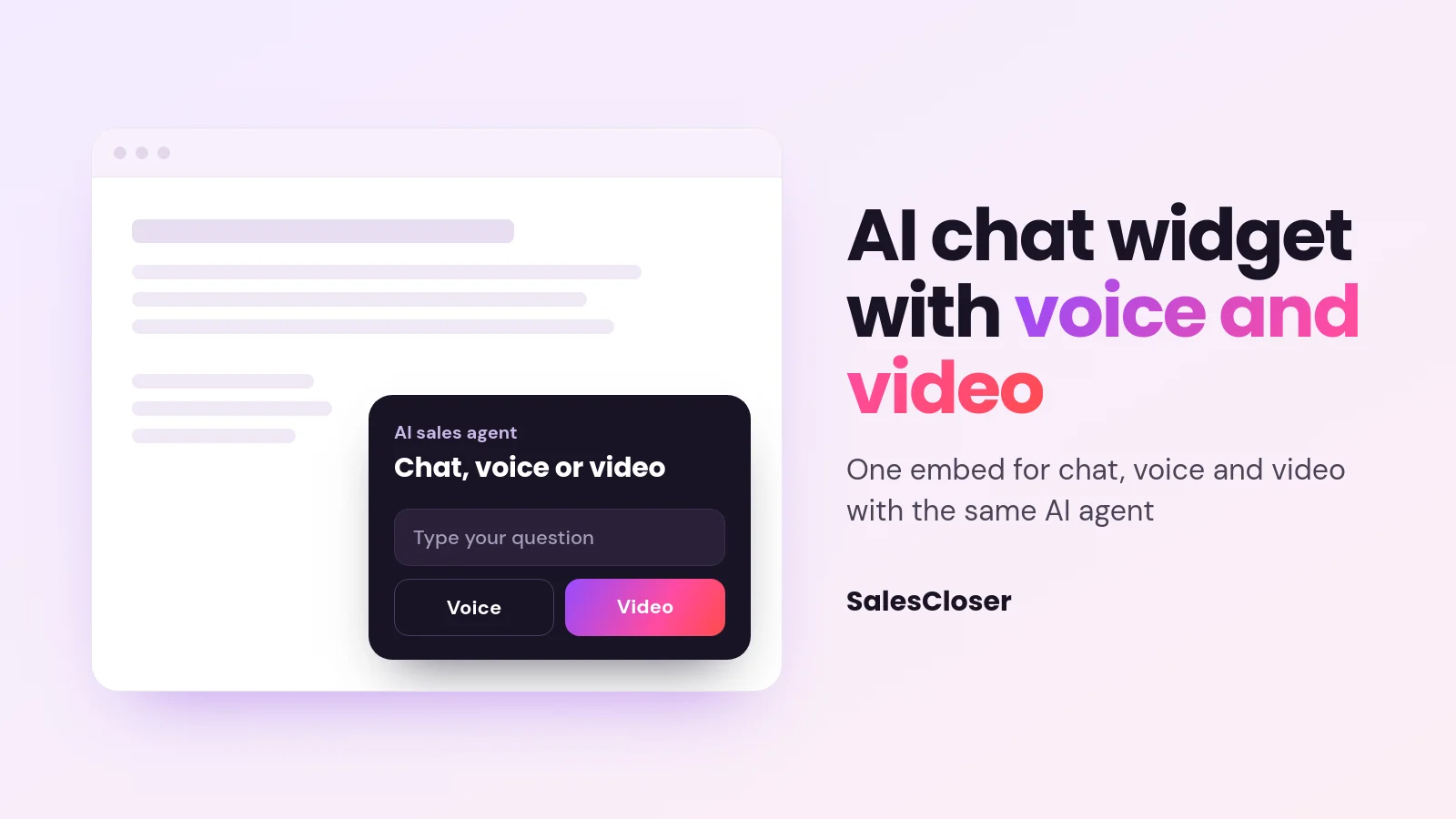
Most website chat tools give visitors one option: type into a box. That suits some people. Others would rather ask their question out loud, and a few want to see who they are talking to before they share details about their business.
This guide explains how a website AI agent can offer all three in a single widget. It covers why the choice matters, what visitors can do inside the widget, how page awareness and the call-to-action banner work, how to add the widget step by step, which layout to pick and the limits to know before you launch.
What is an AI chat widget with voice and video?
It is a single piece of code on your website that opens a conversation with an AI sales agent. Visitors start by typing, or they press a button to talk by voice or video with the same agent. The conversation stays in one place, so nobody has to open a new tab, download an app or join a separate call.
In SalesCloser, this is the Hybrid channel. One embed handles chat, voice and video with the agent you built. The agent answers from the knowledge base you give it, such as your website, documents and FAQs, and follows the rules you set for qualifying questions and next steps.
That is the difference from a classic chatbot or a plain video chat widget. A chatbot is text only. A video chat widget usually connects visitors to a person. A hybrid widget puts one AI agent behind all three ways of talking. For background on the wider category, see our guide to conversational AI for sales.
Why do website visitors want a choice of chat, voice or video?
Buyers arrive in different situations. Someone at a desk in an open office may want to type quietly. Someone comparing options on the move may find it faster to speak. A buyer close to a decision may want the feel of a real meeting before they hand over a work email.
Forcing everyone into one mode loses some of them. Text-only chat can feel slow for detailed questions. A voice or video call as the only option asks too much of a visitor who just wants a quick answer. Giving the choice lets each visitor start where they are comfortable and move up when they are ready.
Here is how the three modes usually line up with what visitors want:
- Chat for quick facts, links and anything the visitor wants to read or copy later.
- Voice for longer questions that are easier to say than to type, or when the visitor is on a phone.
- Video for visitors who want a more personal conversation, especially when the agent has a live avatar.
Response speed matters as well. A visitor with a question right now is more likely to engage than one who gets an email reply later. Our article on speed to lead explains why the first conversation counts.
What can visitors do inside the widget?
The widget is more than a text box with a call button. Here is what it supports today.
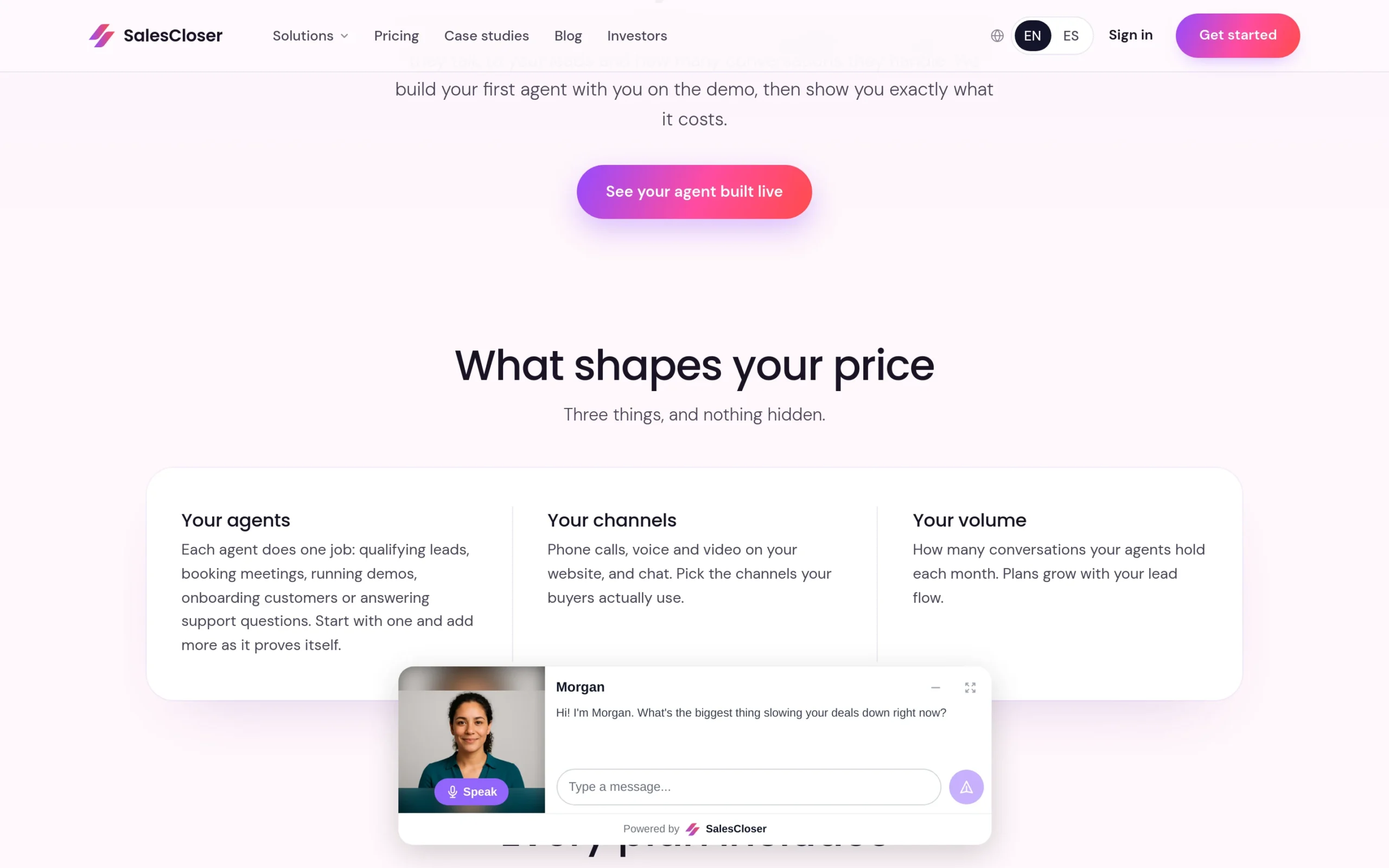
- Five layouts. Bottom bar, floating, inline, sidebar and fullscreen. The widget can collapse to a small pill so it stays out of the way until someone wants it.
- A live avatar. Agents set up with a realtime avatar show a face that speaks during voice and video conversations.
- Choice buttons. The agent can offer clickable options, so a visitor can answer with one tap instead of typing.
- Link buttons. The agent can share a link as a button, for example to a product page or a resource.
- File uploads. Visitors can attach a file, such as a document or a screenshot, to show the agent what they mean.
- Image, video and file cards. The agent can show media and files as cards in the conversation.
- Pinned links. The agent can pin a link at the top of the panel so it stays visible while the conversation continues.
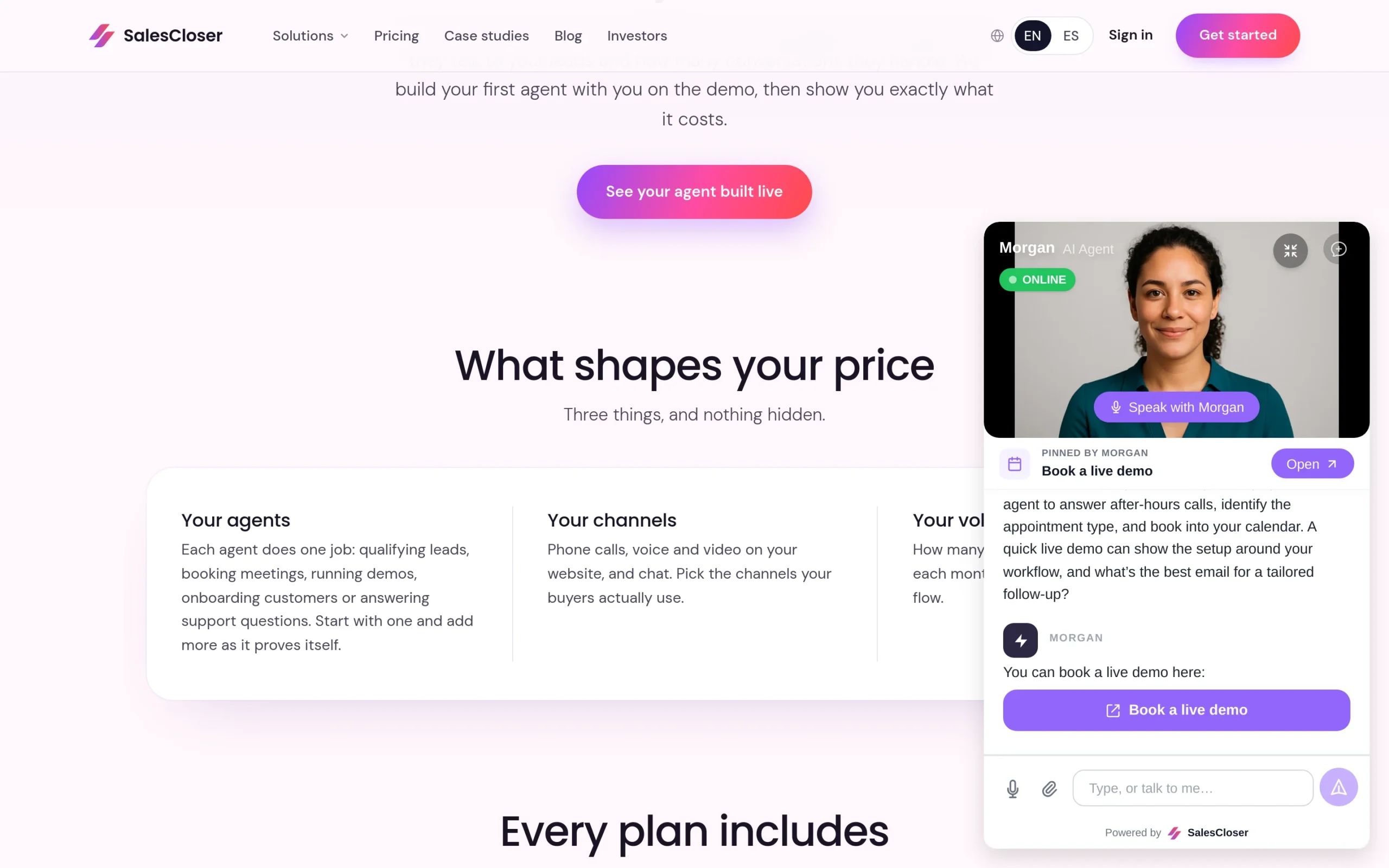
One small detail makes a big difference on voice calls. When the agent asks for an email address or a phone number, the chat panel opens by itself. The visitor can type it instead of spelling it out loud, which avoids errors in the contact details you need for follow up.
How do page awareness and the call-to-action banner work?
Page awareness gives the agent context about where the visitor is. When it is on, the agent receives the visitor’s current page, including the URL, title, main heading, description, page text and structured facts, plus the pages they visited during the session.

The agent uses this only as reference, when the visitor asks or when it helps the answer. It does not bring the page up unprompted, and the greeting stays the same. It ignores any instructions written on your pages and will not repeat personal data from them.
To turn it on, open the Test Widget page and go to More settings > Page Awareness. It is off by default. Add any pages the widget must never read, such as account or checkout pages, to the Restricted pages list.
The call-to-action banner shows a short invitation with a button inside the chat. To add one, open the agent, click Edit, go to Call-to-Action Banner and turn on “Show a call-to-action banner in the chat”. Then fill in the Title, an optional Subtitle, the Button Label and the Button Link.
The banner is off by default and works on hybrid and chat-only widgets only. Use it where you want a more visible next step, for example on high-intent pages, and review how it looks before you publish.
Treat both as settings to test rather than switches to flip everywhere at once. Start with one agent and a few pages, review some conversations, then expand.
How do you add the widget to your website?
Setup takes a few steps inside SalesCloser and one paste on your website. Here is the exact path.
- Go to AI Agents and create an agent with the Hybrid channel. This is the channel that combines chat with voice and video.
- Give the agent its knowledge base and rules: your website, documents and FAQs, plus the questions it should ask and the next steps it should offer.
- On the agent card, open Share > Widget.
- Under Style, choose Floating Button, Bottom Bar or Inline Embed.
- Open Edit Appearance to match the widget to your brand.
- If you want the sidebar or fullscreen layout, or a live preview, open the Test Widget page.
- Copy the code and paste it into your website where you want the widget to appear.
- Optional: switch on page awareness on the Test Widget page under More settings > Page Awareness, and add a banner from the agent’s Edit settings under Call-to-Action Banner.
Before you go live, run a few conversations yourself in each mode. Type a question, switch to voice, try video if the agent has a live avatar, and give an email address when the agent asks for it. Check that answers come from your material and that the next step is the one you intended.
Also decide how the agent introduces itself. You control how the agent introduces itself, including whether it says it’s an AI up front, and you can tell it to always answer truthfully when asked. Check any disclosure rules that apply to your business.
Which widget layout should you choose?
The right layout depends on the page and on how prominent you want the conversation to be. Use this table as a starting point.

| Layout | Best for |
|---|---|
| Bottom bar | Pages where you want the agent visible and inviting without covering content, such as product or pricing pages |
| Floating | Sitewide use, where a small button sits in the corner and opens the conversation on request |
| Inline | Landing pages and contact pages where the conversation is the main action and belongs inside the page layout |
| Sidebar | Longer conversations next to content the visitor is still reading, such as documentation or a detailed guide |
| Fullscreen | Dedicated pages built around a conversation, such as a demo or consultation page |
All layouts can collapse to a pill, so a visitor who closes the conversation still has an easy way back. Floating Button, Bottom Bar and Inline Embed are chosen under Style in the Share panel. Sidebar and fullscreen are set up from the Test Widget page.
If you are unsure, start with the floating layout across the site and an inline embed on one high-intent page. Compare the conversations from each before you change anything else.
What are the limits to know before you launch?
A few points to plan for:
- Branding label. The widget shows a “Powered by SalesCloser” label. Hiding it is available on paid plans.
- Live avatar. The avatar appears only on agents set up with a realtime avatar. On other agents, visitors still get the rest of the widget.
- Settings off by default. Page awareness and the call-to-action banner do nothing until you switch them on. The banner works on hybrid and chat-only widgets.
- Layout choice by location. Three styles are in the Share panel; sidebar and fullscreen are on the Test Widget page.
- Quality depends on your inputs. The agent answers from the knowledge base and rules you give it, so keep both current.
None of these are blockers, but knowing them upfront avoids surprises when you review the first week of conversations.
Where does a website AI agent fit in your sales process?
A hybrid widget is the front door. It catches visitors at the moment they have a question, answers it, asks your qualifying questions and points them to the next step you choose, such as a link to your demo page or a resource that fits their need.
It works best as part of a wider plan. Our guide to AI sales assistants covers how AI helps reps day to day, and our overview of AI for sales looks at where it fits across the funnel. Use the widget to start conversations, and let your team focus on the buyers who are ready to talk.
What should you do next?
Pick one page where visitors often have questions. Create a Hybrid agent, give it your knowledge base, choose a layout from the table above and paste the code. Test chat, voice and video yourself, then review real conversations and adjust the rules.
If you want to see the widget in action with your own use case, book a demo and we will walk through it with you.
Frequently asked questions
Can visitors switch from chat to voice or video in the same widget?
Yes. With a Hybrid agent, one website embed handles chat, voice and video with the same AI agent. A visitor can start by typing and then press a button to talk, without opening a new tab or joining a separate call. If the agent has a realtime avatar, the visitor also sees a live avatar during the conversation.
What layouts does the AI chat widget support?
There are five layouts: bottom bar, floating, inline, sidebar and fullscreen. Each can collapse to a small pill. Floating Button, Bottom Bar and Inline Embed are chosen under Style in the agent’s Share and Widget panel. Sidebar and fullscreen, along with a live preview, are available on the Test Widget page.
Can I hide the “Powered by SalesCloser” label?
Yes, on paid plans. The label appears in the widget by default. If you need a fully branded look, check which plan you are on, and use Edit Appearance to match the rest of the widget to your colors and style before you publish.
Does the agent know which page a visitor is on?
It can, if you switch on page awareness on the Test Widget page under More settings > Page Awareness. It is off by default. The agent then receives the current page and pages visited in the session, but uses them only as reference when the visitor asks or it helps the answer. The greeting stays the same, and pages on your Restricted pages list are never read.
Does the AI agent tell visitors it is an AI?
You decide. You control how the agent introduces itself, including whether it says it’s an AI up front, and you can tell it to always answer truthfully when asked. Check any disclosure rules that apply in the places you sell, and choose wording that fits your brand and your buyers.