
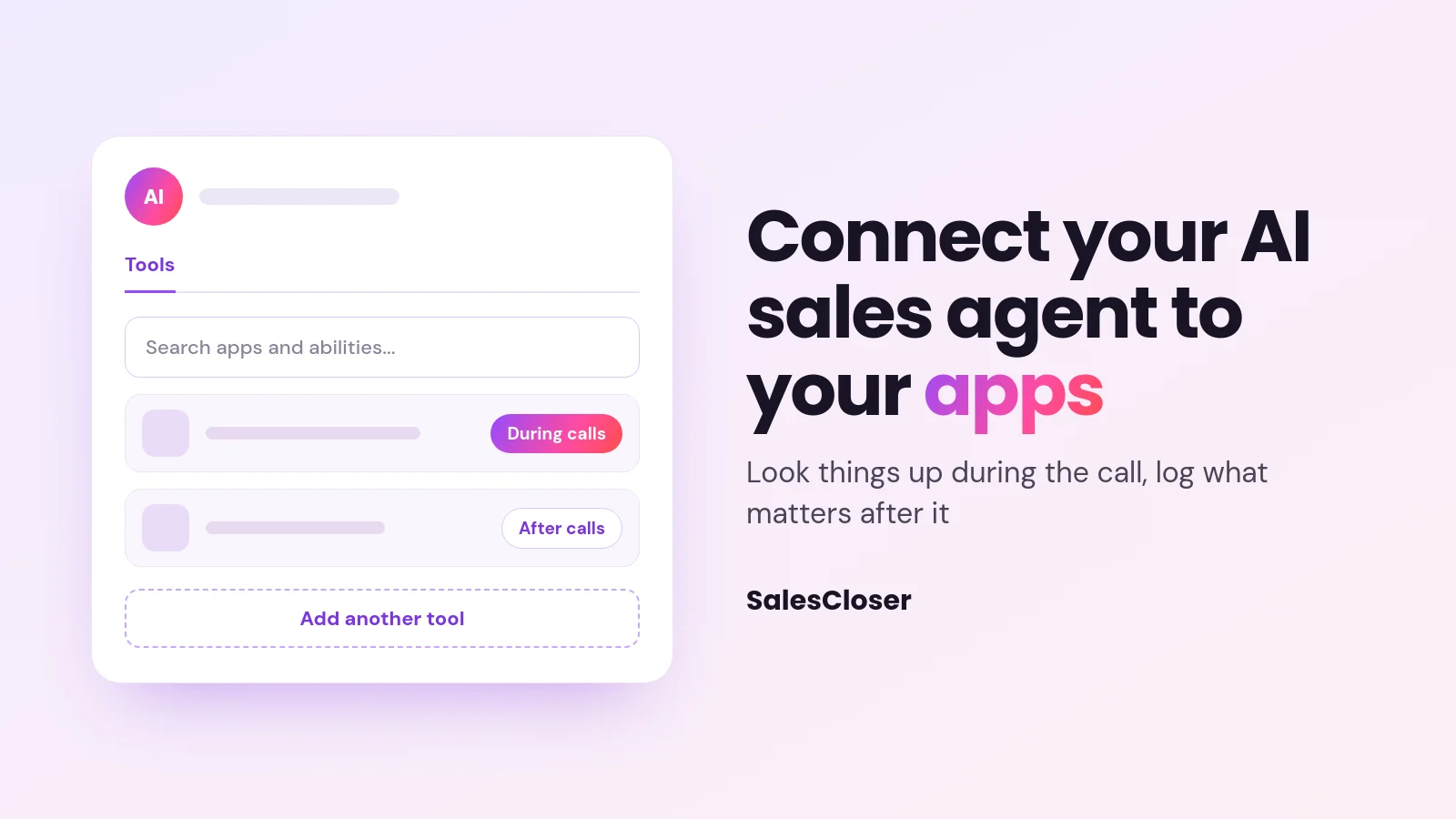
To connect a SalesCloser AI sales agent to your apps, open the agent, go to its Tools tab and choose Add another tool. Pick an app from the catalog and decide whether the agent uses it during calls or after them. CRM, calendar and Zapier connections cover the basics, and teams with their own MCP server can connect it too.
An AI sales agent is most useful when it can reach the systems your team already works in. A buyer asks about their account, and the agent can look it up. A call ends, and the outcome lands where your team will see it. Without those connections, someone has to copy details across by hand.
This guide is the practical, setup side of the topic. If you want the bigger picture of how agents reason and act across a sales stack, read our overview of agentic integrations for sales workflows. Here we cover where to click, what to connect first and what to expect.
What does connecting your AI sales agent to your apps actually do?
A SalesCloser agent holds real conversations by voice, video or chat, on the phone, on Zoom or in the browser. It answers inbound leads, asks qualifying questions, runs discovery, gives demos and books qualified prospects onto your calendar. Connections let it use your other tools while it does that work.
There are two broad jobs. During a call, the agent can use an app to look something up, so its answers reflect your real data. After a call, it can log or update information in an app, so the conversation turns into a record your team can act on.
How do you add an app from the agent’s Tools tab?
App connections are set up per agent, so each agent only gets the tools that match its role. A demo agent and a support agent can have different apps. The path is short:
- Open the agent you want to connect.
- Go to its Tools tab.
- Click Add another tool to open the app catalog.
- Use the search box (“Search apps and abilities…”) to find the app or the ability you need.
- Connect the app and choose whether the agent uses it during calls or after calls.
- Tell the agent in its instructions when each tool should be used.
Apps that sign in with a long-lived token are supported as well as those that use a normal sign-in. The catalog lists what is available for your account, so search there rather than assuming a specific app or action exists.
Should an app run during the call or after it?
Every app you add is used either during calls or after them. Picking the right one keeps conversations focused and records tidy. A simple rule: if the buyer needs the answer now, use it during the call. If your team needs the information later, use it after.

During the call
Use an app during the call when the agent needs live information to answer well. Typical examples are looking up a customer’s details, checking the status of an order or request, or finding a record that a buyer mentions. The agent uses what it finds to answer in the moment.
After the call
Use an app after the call for logging and follow-up. Typical examples are adding a note about what was discussed, updating a record with a new detail the buyer shared, or creating a task for your team. Nothing slows the conversation, and the work still gets done.
What happens when an app’s ready-made actions don’t cover a request?
Each app in the catalog comes with ready-made actions. Sometimes the action you want is not one of them. In that case, the in-app assistant can work through the app’s own API to do what you asked, instead of leaving you stuck with the default list.
This is not the agent improvising on its own. Your request is saved as a goal that the assistant works through, and it does not run unsupervised. Describe the outcome you want clearly, check the result on a test call, and adjust your request if the result is not quite right.
How do CRM, calendar and automation connections fit in?
Alongside the app catalog, three connections cover the everyday basics of an AI sales workflow. Most teams set these up first, because they move every qualified conversation into the tools the sales team already lives in.
- CRM: SalesCloser connects to HubSpot, Pipedrive, Zoho, GoHighLevel, Zendesk and Intercom. Use the install link in Documentation > Integrations; once connected, you manage it under Integrations > My Integrations > Partner connections. It saves the lead, a call summary and the qualification answers. It does not create or move deals in the CRM; use Zapier for that.
- Calendar: connect Calendly or Cal.com under Account Settings > Calendar, then open the agent, turn on Schedule Appointment and pick the calendar. The agent then books qualified prospects onto your team’s calendar, so the next step is set before the call ends.
- Automation: Zapier, webhooks and the API pass data between SalesCloser and your other systems, for example sending new leads to the agent or triggering a deal update after a call.
Conversations are recorded and transcribed so your team can review them inside SalesCloser. For ideas on where automation helps most across the funnel, see our guide to AI sales automation.
Which connection should you use for each job?
Use this table to match what you want the agent to do with where you set it up.

| What you want the agent to do | Where to connect it | During or after the call |
|---|---|---|
| Look up a customer or order detail while the buyer is talking | Tools tab, app set to during calls | During |
| Log a note or update a record in another app | Tools tab, app set to after calls | After |
| Save the lead, call summary and qualification answers to your CRM | CRM install link in Documentation > Integrations, managed under Integrations > My Integrations > Partner connections | After |
| Book a qualified prospect onto your calendar | Account Settings > Calendar (Calendly or Cal.com), then Schedule Appointment on the agent | During |
| Create or move a deal in your CRM | Zapier | After |
| Send leads in or pass call data to your own systems | Zapier, webhooks or the API | Before or after |
| Use a tool hosted on your own MCP server | Add Actions, custom tool server | During the conversation (calls and chat), when the agent uses an allowed tool |
Advanced: how do you connect your own tool server?
This option is for teams with their own MCP server, the open standard many tools use to expose actions to AI agents. It is a newer, advanced setting, so treat it as something to test carefully rather than a well-trodden path. Anyone who can edit agents can set it up.

- Go to AI Agents and open your agent.
- Choose Add Actions, then Create new Action.
- Select Connect a custom tool server (via MCP, advanced).
- Enter Your tool server address.
- Either Sign in through the pop-up (no key needed, and access refreshes automatically) or paste a key.
- Click Test connection.
- Under Which tools can your agent use?, tick only the tools this agent needs.
- Save the action.
The allowlist is the important step. Give the agent the smallest set of tools that does the job, and leave out anything it should never touch on a live call. You can add more later once you have seen how it behaves.
This works in the opposite direction from the SalesCloser MCP server, which lets AI assistants such as Claude, Cursor and Codex work with your SalesCloser account. One brings your tools to the agent; the other brings SalesCloser to your assistant.
What should you connect first?
Start with the connections that remove the most manual work, then add live lookups once the basics are reliable. A sensible order for most teams:
- Calendar first. Booking qualified prospects is the clearest outcome of a sales conversation.
- CRM next. Saving the lead, summary and qualification answers means nothing gets lost.
- Zapier for deal steps. If your team works from a deal pipeline, automate the deal update.
- One during-call app. Add a single lookup your buyers often need, and test it.
- After-call apps. Add logging or tasks in the other apps your team uses.
- Your own tool server last, and only if you already run one.
Add one connection at a time and run a few practice calls after each. If you are still deciding where AI fits in your process, our practical guide to AI for sales walks through it by funnel stage.
What are the limits to keep in mind?
- Apps come from the catalog. Search it to see what is available rather than assuming a specific app or action is there.
- The CRM connection saves the lead, call summary and qualification answers. It does not create or move deals; that runs through Zapier.
- When the in-app assistant works through an app’s API, it works through a saved goal under your direction, not unsupervised. Check the results.
- The custom tool server option needs an MCP server you already run, plus someone who understands it. Its tools run during the conversation, on calls and in chat, not after. It is new, so test it before relying on it.
- Every tool you add is another thing the agent can do. Keep each agent’s tools to what its role needs, and review recorded conversations to see how they are used.
How do you get started?
Pick one agent, connect your calendar and CRM, and run a test call. Then open the Tools tab, add one app the agent should use during calls and one it should use after, and test again. Build from there in small steps.
If you would like to see an agent working with your tools on a live call, you can book a demo with the SalesCloser team.
Frequently asked questions
How do I connect an app to my SalesCloser AI agent?
Open the agent, go to its Tools tab and click Add another tool. Search the app catalog with “Search apps and abilities…”, connect the app, and choose whether the agent uses it during calls or after them. Then tell the agent in its instructions when to use each tool, and test it with a practice call.
What is the difference between using an app during a call and after a call?
During a call, the agent uses the app for live information, such as looking up a customer detail a buyer asks about. After a call, it uses the app to log or update information, such as adding a note or creating a task. Use during for answers the buyer needs now, and after for records your team needs later.
Does SalesCloser create deals in my CRM?
No. SalesCloser connects to HubSpot, Pipedrive, Zoho, GoHighLevel, Zendesk and Intercom and saves the lead, a call summary and the qualification answers. Creating or moving deals is done through Zapier, which can run after the call so your pipeline stays up to date.
What if the app I connect doesn’t have the action I need?
When an app’s ready-made actions can’t do what you asked, the in-app assistant can work through the app’s own API instead. Your request is saved as a goal it works through, and it does not run unsupervised. Describe the result you want clearly and check it on a test call.
Can I connect my own MCP server to a SalesCloser agent?
Yes, if your team runs one. Go to AI Agents, open the agent, choose Add Actions, then Create new Action, and select “Connect a custom tool server (via MCP, advanced)”. Enter the server address, sign in or paste a key, test the connection, and choose which tools the agent may use before saving. The agent uses those tools during the conversation, on calls and in chat.