Security and admin: control who can do what in your account
Each user can turn on two-factor sign-in, passwords need at least 12 characters and are checked against known breaches, and your team gets Admin, Manager, Editor or Viewer access on every plan. Sign-ins and security changes are recorded so our team can trace activity on your account.
- Two-factor sign-in
- 12+ characters, breach-checked
- Four roles on every plan
- Security activity recorded
Sign-in
How signing in is protected
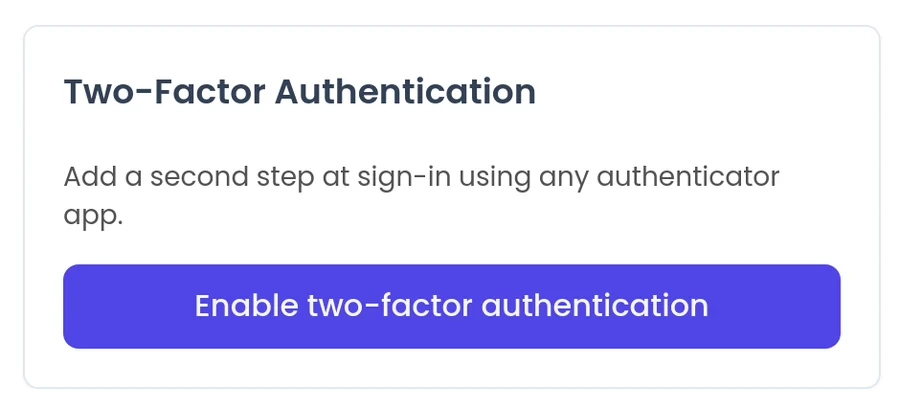
Each user turns on two-factor sign-in from their profile settings. They link an authenticator app by scanning a QR code or pasting a setup key, then confirm with a six-digit code. After that, signing in asks for a code from the app.
- Two-factor is opt-in for each user, so make it part of how new teammates get started.
- Passwords need at least 12 characters, and passwords found in known data breaches are refused.
- Sign-ins, failed sign-ins, password and two-factor changes, and API token changes are recorded so our team can trace activity if something looks wrong.
Access
Who can do what
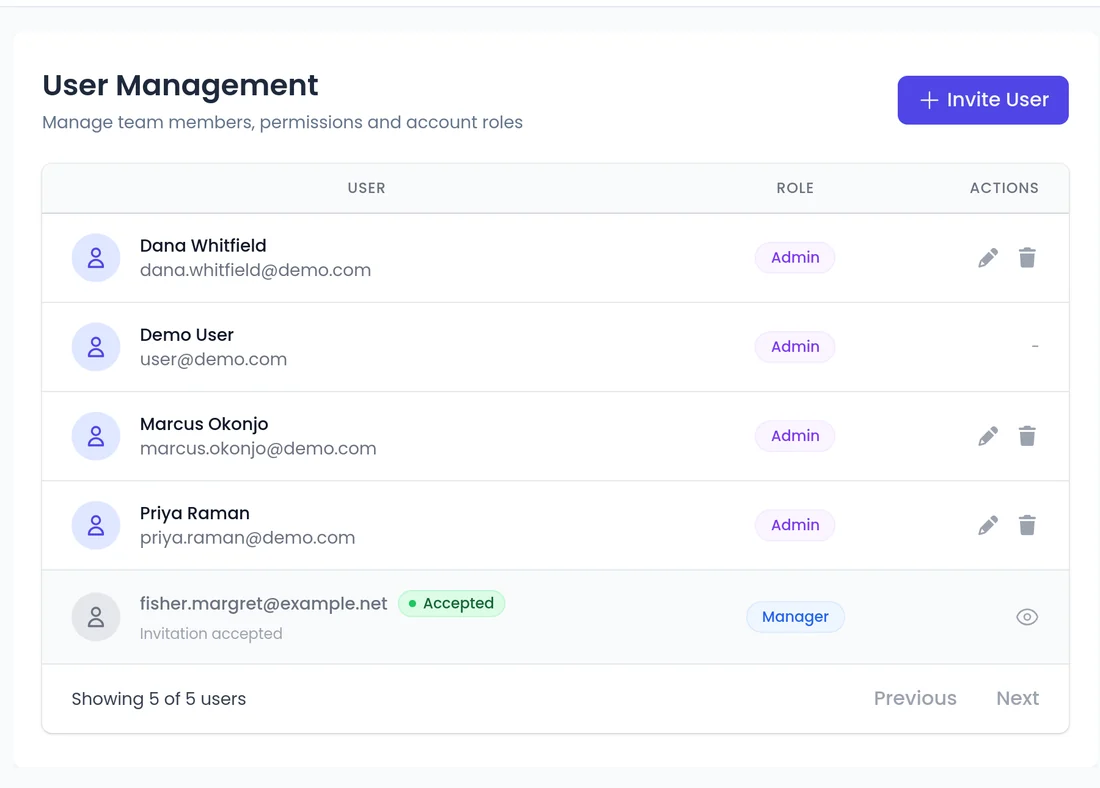
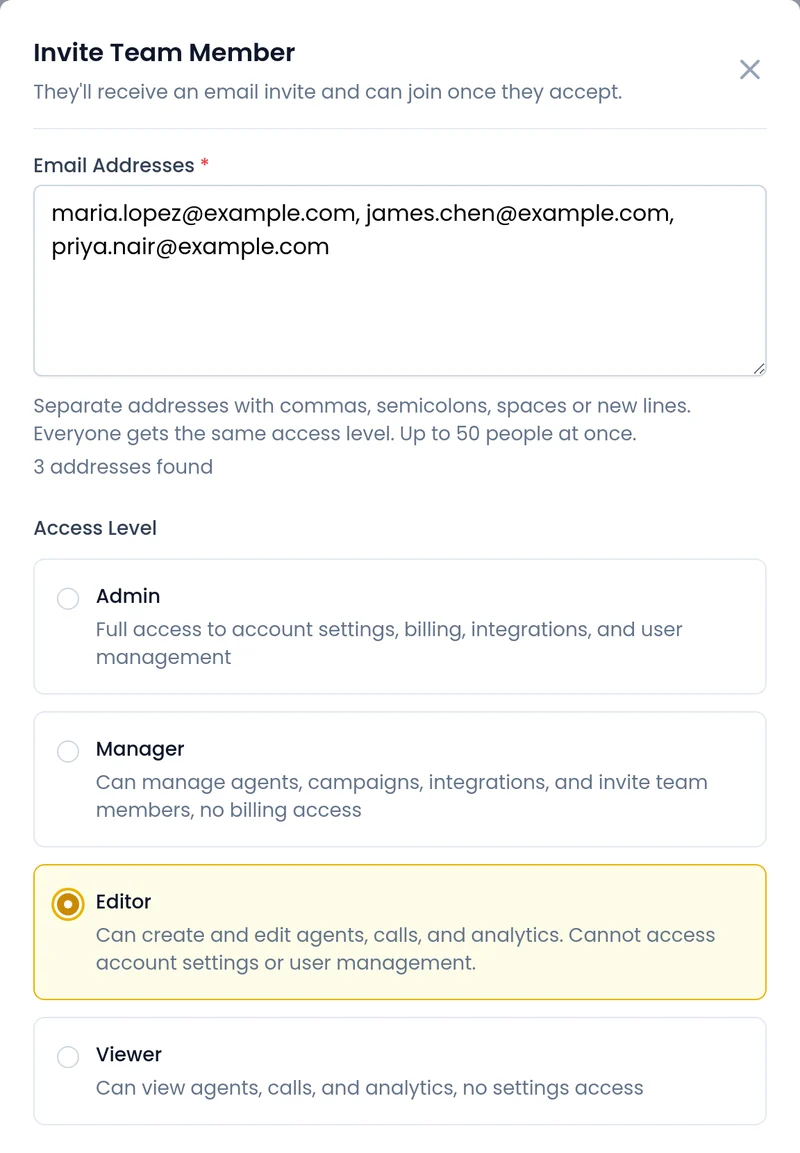
Invite your team with Admin, Manager, Editor or Viewer access, on every plan. A teammate who only reviews conversations does not need to change agents.
- Admins and managers can invite several teammates at once from User & Permissions by pasting a list of email addresses.
- If visitors are logged in to your site, the widget can identify them with a signed token, using named signing keys per agent that you can revoke. See website chat widget.
- Name each API key and build with sandbox keys that never touch live data. See API and MCP server.
At a glance
Who sets each control and what it does.
Two-factor sign-in
Each user. Asks for a code from an authenticator app.
Passwords
Built in. At least 12 characters, breach-checked.
Team roles
Your account. Admin, Manager, Editor or Viewer access.
Bulk invites
Admins and managers. Invite several teammates by pasting emails.
Security activity
Built in. Recorded so our team can trace activity.
Keep your workspace organized
Agent folders
Keep agents in folders as your team builds more, for example by product line, region or client.
Where your widget runs
An Embedded Sites tab lists the websites your agent's widget runs on, and each conversation shows the site it started from.
Learn more →Training videos in the app
Searchable training videos, organized by topic, so new teammates learn at their own pace.
Recorded conversations
Conversations are recorded and transcribed so your team can review them. Decide who on your team needs access.
FAQ
Still wondering about something? Ask us on the call. We'll build your agent while we talk.
Can I require two-factor for my whole team?
Two-factor is opt-in for each user. Each person turns it on from their profile settings.
What roles are available?
Admin, Manager, Editor and Viewer, on every plan.
Can I see a log of sign-ins?
Sign-ins and security changes are recorded so our team can trace activity on your account. If you are worried about access, contact support.
How do I add my team?
Admins and managers can invite several teammates at once from the User & Permissions page by pasting their email addresses.
See how your team would work in SalesCloser
Book a demo and we will show you roles, sign-in and team setup for an account like yours.