
SalesCloser AI sales agents can now chat and talk with visitors in one website widget, bring a live rep into a call when a buyer is ready, score buying intent as the conversation happens, handle callbacks and voicemail on outbound calls, speak in more natural voices and connect to your own tools and AI assistants.
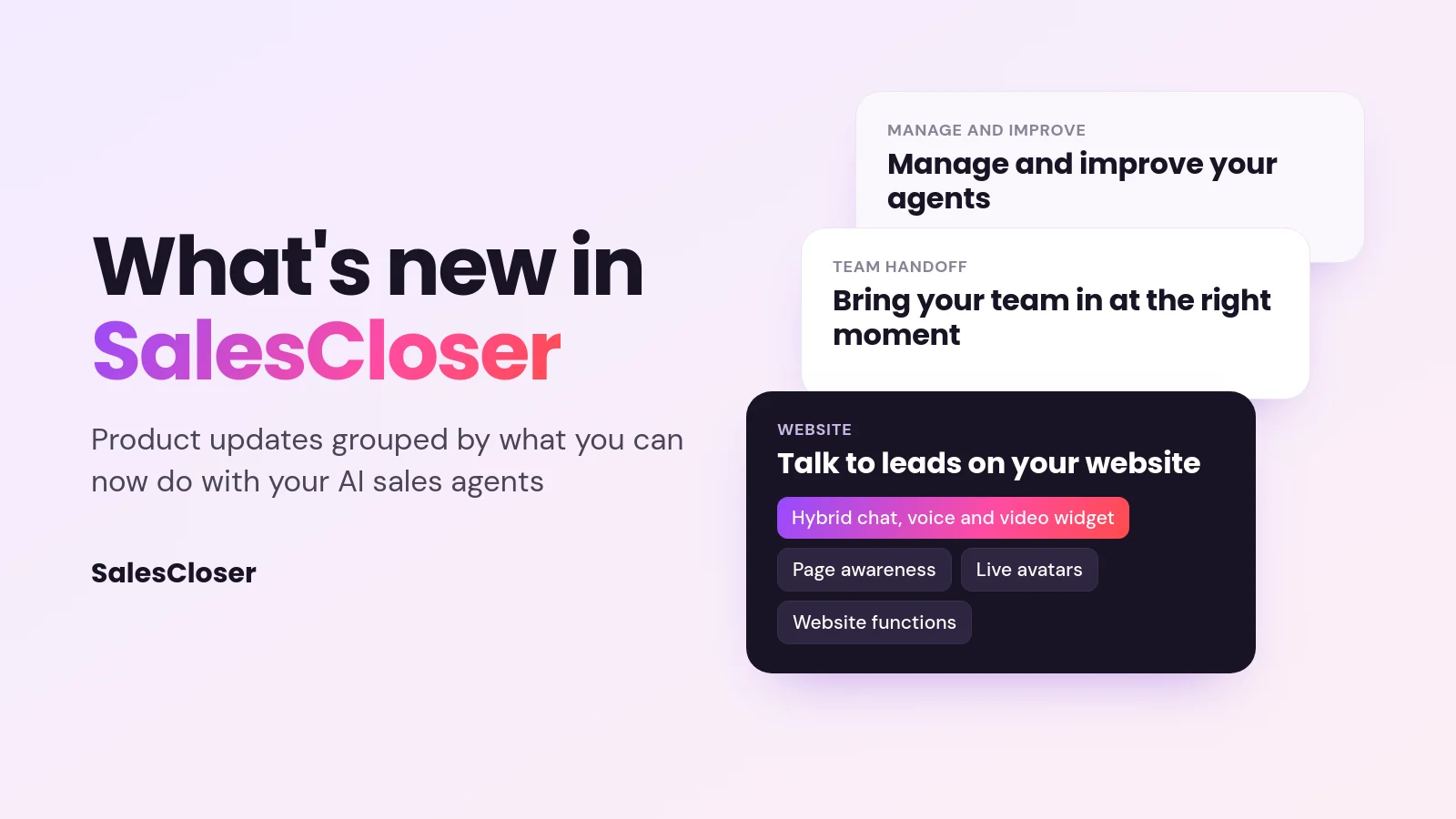
SalesCloser has shipped a long list of product updates. Rather than list them as release notes, this page groups them by what you can now do with your AI sales agents. Each feature gets a short explanation of what it does, why it helps, and whether it is already on or needs a switch in your settings.
If you are new to the idea of AI agents in a sales team, our guide to AI for sales covers the basics first.
Talk to leads on your website
Your website is where buyers show the most intent, so this is where many of the updates land. The goal is simple: let a visitor go from reading to talking without filling in a form and waiting for a reply.

One widget for chat, voice and video
The hybrid widget is a single website embed where visitors can chat with your agent, then switch to a voice or video conversation in the same window. They pick the way they want to talk, and the agent keeps the context when they switch.
Layouts include a bottom bar, floating button, inline embed, sidebar and fullscreen, and it collapses to a small pill. Inside the chat, the agent can show choice and link buttons, accept file uploads, share image, video and file cards, and keep important links pinned at the top.
One small detail saves a lot of frustration: when the agent asks for an email address or phone number during a voice call, the chat panel opens by itself so the visitor can type it instead of spelling it out loud. On paid plans you can also hide the “Powered by SalesCloser” label.
A website agent that knows which page the visitor is on
With page awareness on, the agent receives the page a visitor is reading and earlier pages in the visit, using them as reference when the visitor asks or it helps. It does not raise the page unprompted and ignores instructions written on pages. Turn it on at Test Widget > More settings > Page Awareness; it is off by default.
You can also set opening messages and engagement triggers. A call-to-action banner, set under Call-to-Action Banner in the agent’s Edit settings, adds a title, optional subtitle and button to hybrid and chat-only widgets. Together they make the widget a helpful first step, which matters because speed to lead starts the moment someone lands on your site.
Agents that take action on your website
Your agent can now call functions on your own website in the middle of a conversation. For example, it can look up information your site holds or start an account for the visitor. You register the functions you want the agent to use, so you decide exactly what it can do. See how website actions work.
Live AI avatars for video conversations
For video, a larger gallery of stock avatars with more natural movement is available, and agents that use a realtime avatar now show the live avatar right in the hybrid widget instead of a still image. Video calls can also run fullscreen with floating controls. Pick an avatar for your agent to start.
Bring your team in at the right moment
AI agents handle a lot of conversations well, but some buyers are ready to talk to a person. These updates help your agent spot that moment and bring the right rep in while the buyer is still on the line.

Human handoff with a Waiting Room
When a buyer is ready, the agent can pull a rep into the live web voice, video or hybrid call. Reps in the Waiting Room listen in with a live summary, then join and click Take over now, with a spoken takeover passphrase as the backup. Calls are offered to one rep at a time with a countdown.
You set rep priority with stars, so your best fit for a hot lead gets the first offer. Handoff works only on calls made in a browser. Phone calls show in the Waiting Room for monitoring, and phone agents hand off by call transfer. A rep must be present. If nobody is available, the agent carries on the conversation itself.
To set it up, turn on the Waiting Room in Account Settings, then open the agent, choose Bring in a human and pick who answers and a takeover passphrase no customer would say. An optional website button offers a live rep only when one is available. For more on inbound flows, see our inbound AI voice agent guide.
A live buying-intent score
The intent score rates how ready a lead looks to buy on a scale from 0 to 100 and updates as the conversation goes on. Your team sees it as a live meter on the conversation page, so they know which conversations deserve attention right now.
It works on every channel and is switched on per agent with Lead Intent under Advanced Settings. Two automations under Automations > Add abilities > Call handling act at a default score of 70: an email with a join link for voice/video and hybrid agents, or a transfer to your number for phone agents.
Bring another agent into the call
A single agent does not have to know everything. On web calls, your agent can invite one of your other agents, for example a pricing specialist or a technical expert, who joins the live conversation and stays for the rest of the call. You choose which agents it may bring in, from a list of up to 10.
Follow foreign-language calls in English
SalesCloser agents speak 50+ languages, and now your reps can open a live web call in the Waiting Room and read the transcript in English, with an English / Original switch. After joining, Take over now is on the same screen. This works on web calls, not ordinary phone calls.
Route each lead to their own rep
Call transfers can now use a number stored on the lead record, so an existing customer or an assigned account goes to their own rep instead of a general line. The agent can book a meeting before transferring, and it only transfers after the lead gives a clear yes, which avoids surprise handoffs.
Call and follow up leads
Outbound calling is where small details decide whether a lead has a good experience. These updates focus on respectful timing and on handling the messy parts of phone calls. For the bigger picture, read our guide to AI agents for outbound sales.

Callbacks handled for you
When a lead on the phone says “call me back later”, the agent now schedules the callback itself. The lead gets the call at the time they asked for, and your team does not have to remember to follow up by hand. It is on for everyone with phone agents.
Voicemail and phone menu handling
A single voicemail and phone menu navigator now handles outbound calls that do not reach a person straight away. The agent can find its way through automated phone menus and leave a voicemail message that uses details from the lead record, so the message sounds personal rather than generic.
Calling hours in the lead’s local time, plus call caps
Campaigns can now follow calling hours in each lead’s own timezone, so a lead on the other side of the country is not called at dinner time. You can also cap how many calls go out per minute, hour or day. Both live in the campaign settings, and local-time calling hours are off until you turn them on.
Campaigns also pause on their own, with the reason shown, if the connection to your phone provider breaks.
Pick the call language for each number
Under Account Settings > Communication > Phone Numbers, the Language column sets each number to Agent’s language (the default), Infer from caller, or a fixed language. A language mismatch action decides whether to continue or end a call when the caller speaks an unexpected language. Both help when one team serves several regions.
Make your agent sound and act like your business
These updates make conversations sound more natural and keep the agent on message.

More natural voices with speech-to-speech
Speech-to-speech agents listen and respond in voice directly, which makes the conversation faster and more natural. You can preview voices and adjust the end-of-turn speed, which controls how quickly the agent replies after the other person stops talking. Newer voices are also available across every supported language.
Say brand and product names right
A pronunciation dictionary lets you add terms the agent should say a specific way, such as your company name, product names or industry words. It applies to the classic voice setup, not to speech-to-speech agents. A mispronounced brand name is a quick way to lose trust on a call.
Word-for-word scripts when you need them
Some conversations need exact wording, such as a required statement or a specific offer. The Scripted conversation style tells the agent to say your script word for word. Turn it on under AI Conversation Style for the agents that need it, and keep a natural style for the rest.
Train your agent on your demo videos and protected pages
You can now build a knowledge base from uploaded videos, so your best product demos and training recordings become material the agent can answer from. Knowledge base sources can also come from web pages that need a login or key, so internal or gated documentation is no longer off limits.
Connect your tools and AI assistants
An agent is more useful when it can work with the systems you already run. These updates make it easier to connect SalesCloser to your stack, and to connect your own AI assistants to SalesCloser.
Connect Claude, Cursor and other AI assistants with MCP
The SalesCloser MCP server lets AI assistants such as Claude, Cursor and Codex work with your account. The assistant can read and change agents, leads, knowledge bases and campaigns, and it can place or schedule calls. Anything that uses your plan’s usage or deletes data shows a preview and asks you to confirm first.
To set it up, go to Integrations, then API Tokens, then Connect AI Assistant, generate a token and paste the setup snippet into your assistant. It needs an active subscription and is separate from the REST API key.
Connect your own tool servers
Your agent can connect to your own tool server, so it can use your internal tools during a conversation without a third-party integration in between. Connecting now works by signing in through a pop-up window, so there is no key to copy and paste. See how to connect your agent to your apps and tools.
Automate what happens after the call
Two events can now kick off your own automations: one when a conversation reaches a conversion, and one when a campaign finishes. Both go to Zapier, webhooks and Appmixer, so you can update other systems, alert your team or start the next step automatically.
Manage and improve your agents
The last group of updates is about running agents well over time: building them faster, spotting problems and keeping your account organised.
Build and manage agents by chatting
The in-app assistant can build your first agent from your website, then help you manage agents, campaigns, leads and knowledge bases by chat. It can suggest improvements to your prompts and applies them only when you approve.
Find problems in your agent’s instructions
Prompt Analysis reads your agent’s instructions and flags contradictions and instructions the agent cannot follow. Click Run analysis to see what to fix. Clean instructions are the simplest way to improve how an agent performs.
Clearer call results
Every call now has two separate labels: Call Status, which tells you what happened on the line, and Call Outcome, which tells you what the conversation achieved. Splitting them makes reporting easier to read and helps you see where leads drop off.
Smaller updates worth knowing
- Calls and chats now live together in one Conversations view, with a filter by type.
- Bulk lead import from CSV or Excel files with column mapping, and exports where you pick the fields and format.
- Two-factor login with an authenticator app, which each user can turn on in profile settings.
- Invite several teammates at once.
- Mark each agent as inbound, outbound or both.
- Searchable training videos inside the app.
Conversations are recorded and transcribed so your team can review them. You control how the agent introduces itself, including whether it says it’s an AI up front, and you can tell it to always answer truthfully when asked.
All new features at a glance
Here is every feature on this page in one place, with how to start using it.

| Feature | What it does | How to start |
|---|---|---|
| Hybrid chat, voice and video widget | Visitors chat or talk with your agent in one website embed | On for everyone |
| Page awareness, triggers and CTA banner | Page context for answers, opening messages and a banner | Turn on in settings |
| Website functions | Agent takes actions on your site mid-conversation | Turn on in settings |
| Live avatars | Natural video avatars, including live in the widget | Turn on in settings |
| Waiting Room handoff | Agent brings a live rep into a web voice, video or hybrid call | Turn on in settings |
| Intent score | Live 0 to 100 buying-intent meter on each conversation | Turn on in settings |
| Bring in another agent | Specialist agents join a live web call | Turn on in settings |
| Live English transcript | Reps follow foreign-language web calls in English | Turn on in settings |
| Transfer to the lead’s own rep | Routes calls to the number on the lead record | Turn on in settings |
| Callback scheduling | Agent books a callback when a lead asks | On for everyone |
| Voicemail and phone menu navigator | Handles menus and leaves personal voicemails | On for everyone |
| Local-time calling hours and call caps | Respectful outbound timing and volume | Turn on in settings |
| Per-number call language | Sets the language each number uses | Turn on in settings |
| Speech-to-speech and end-of-turn speed | Faster, more natural voice conversations | Turn on in settings |
| Pronunciation dictionary | Says brand and product names right | Turn on in settings |
| Scripted style | Says your script word for word | Turn on in settings |
| Knowledge base from videos and protected pages | Agent learns from demos and gated docs | On for everyone |
| MCP server | AI assistants work with your SalesCloser account | Turn on in settings (active subscription) |
| Custom tool servers | Agent uses your own tools, connected by sign-in | On for everyone |
| Conversion and campaign events | Triggers automations in Zapier, webhooks and Appmixer | On for everyone |
| In-app assistant | Builds and manages agents by chat | On for everyone |
| Prompt Analysis | Flags problems in agent instructions | On for everyone |
| Call Status and Call Outcome | Separate labels for what happened and what was achieved | On for everyone |
See the new features on your own leads
Taken together, these updates make SalesCloser agents more useful at each step: greeting visitors on your site, bringing reps in when a buyer is ready, following up by phone with good manners, and fitting into the tools your team already uses. To see how conversational AI for sales works in practice, start with one use case and grow from there.
The easiest way to see these features working together is on a call with our team. Book a demo and we will show you the agent on your own website and leads.
Frequently asked questions
What is new in SalesCloser?
SalesCloser has added a hybrid chat, voice and video website widget, human handoff through a Waiting Room, a live buying-intent score, callback scheduling, a voicemail and phone menu navigator, local-time calling hours, speech-to-speech voices, a pronunciation dictionary, a Scripted style, an MCP server for AI assistants, custom tool servers and Prompt Analysis.
Do I need to turn the new features on?
Some are on for everyone, such as the hybrid widget, callback scheduling, the voicemail navigator, automation events and Prompt Analysis. Others are switched on in your settings, including the Waiting Room, intent score, page awareness, speech-to-speech, the pronunciation dictionary, the Scripted style and the MCP server. The table above shows which is which.
Can a SalesCloser agent hand a call to a human rep?
Yes, on web voice, video and hybrid calls. When a buyer is ready, the agent offers the call to a rep in the Waiting Room, who listens in with a live summary, then joins and clicks Take over now, with a spoken passphrase as the backup. Phone calls are monitor-only there; phone agents hand off by call transfer. If no rep is present, the agent carries on.
Which AI assistants can connect to SalesCloser?
Claude, Cursor, Codex and other assistants that support MCP can connect through the SalesCloser MCP server. Once connected, the assistant can read and change agents, leads, knowledge bases and campaigns, and place or schedule calls. Actions that use your plan’s usage or delete data show a preview and ask you to confirm first. It needs an active subscription.
Does the agent say it is an AI?
You control how the agent introduces itself, including whether it says it’s an AI up front, and you can tell it to always answer truthfully when asked. Conversations are recorded and transcribed so your team can review them. Check the disclosure and recording rules that apply where you and your leads are located.