Website chat widget: chat, voice and video in one embed
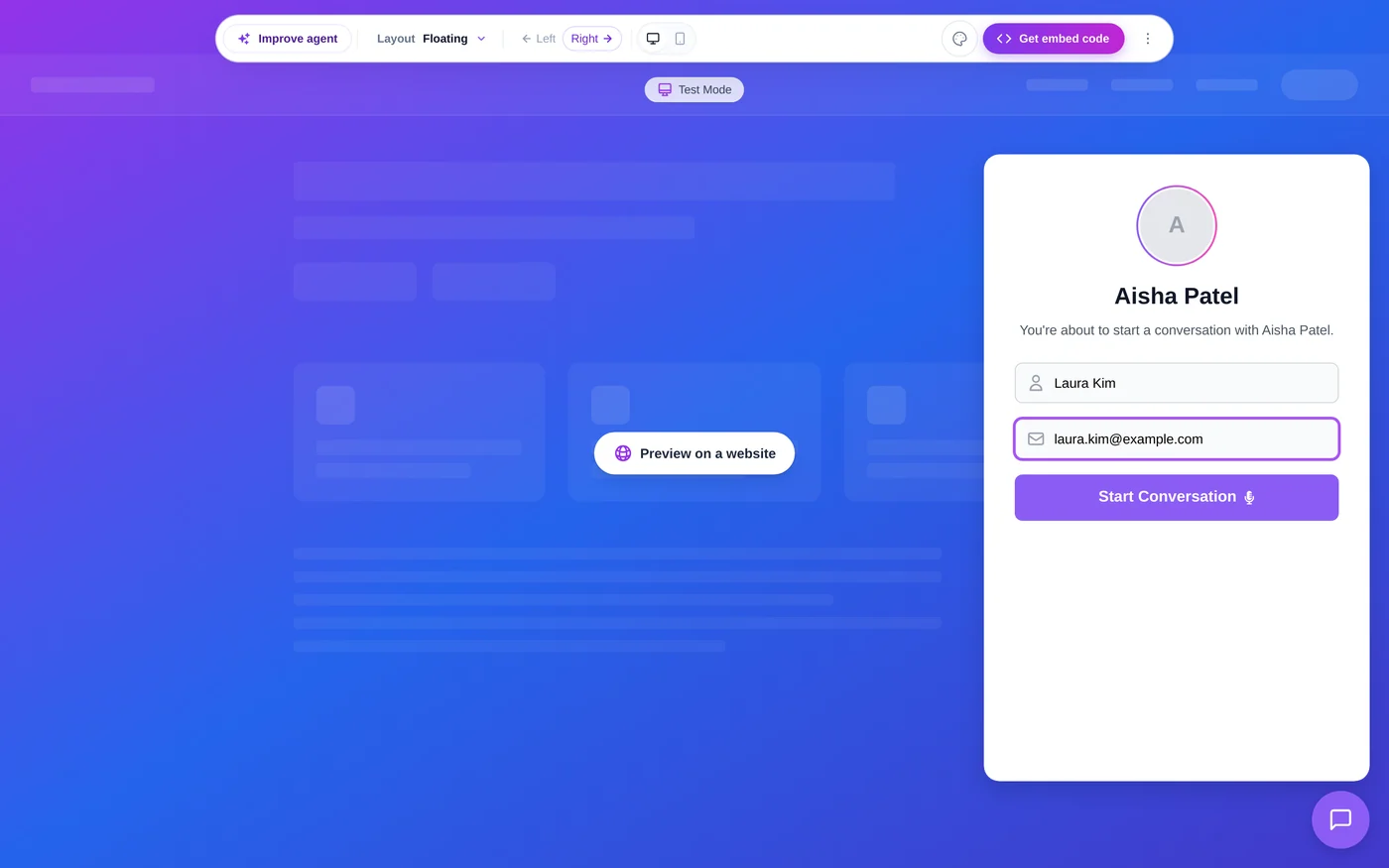
Put your AI sales agent on your website. Visitors type a question, then switch to a voice or video call with the same agent without losing the thread. One embed code, your branding, answers from your own content.
- Chat, voice and video
- One embed code
- Your colours
- Answers from your content
What it does
What does the website chat widget do?
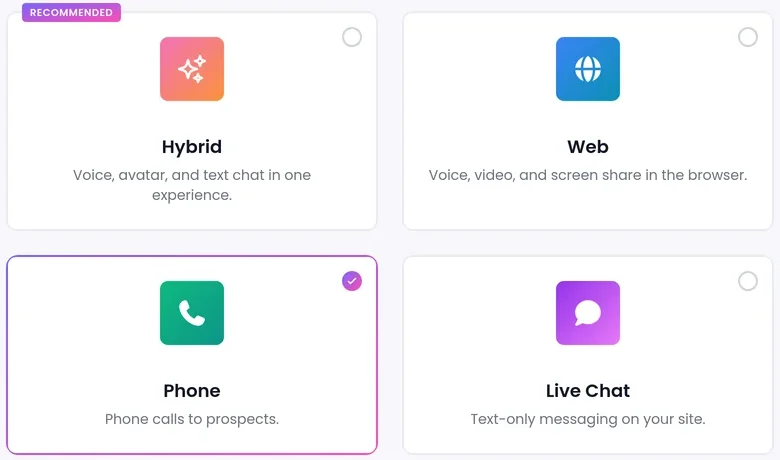
Run a chat-only agent, or a Hybrid agent that also takes voice and video calls from the same widget. Nobody has to open a new tab, download an app or join a separate call.
- Calls and chats land in the same conversation list in your dashboard.
- The Embedded Sites tab shows which websites your widget runs on.
What can visitors do inside the widget?
Chat, then talk
Start by typing, then press a button to talk by voice or video with the same agent.
See a live avatar
On agents set up with a realtime avatar, the avatar moves live in the widget.
Tap instead of type
One-tap multiple-choice questions and link buttons, in chat and on calls.
Share files
PDFs, images, Word, Excel and CSV files are saved to the lead.
Keep links handy
Links shared in the chat stay pinned at the top.
Type instead of spell
On web calls, the chat opens so the visitor can type an email or phone number.
Pre-call form
Ask for a visitor's details in a short form, shown in the agent's language.
Signed-in visitors
A signed token attaches conversations to the right contact, not an anonymous guest.
How do you add the widget to your website?
For the sidebar or full-screen layout, or a live preview, open the Test Widget page. Before you go live, test each mode yourself.
- 1
Create the agent
In AI Agents, pick the Hybrid channel, or a chat-only agent for text only.
- 2
Give it knowledge
Add its knowledge base and the questions it should ask.
- 3
Pick a style
On the agent card, open Share Call > Widget, then choose a Style.
- 4
Edit Appearance
Set colours, reply bubbles and a transparent background.
- 5
Paste the code
Copy the code and paste it where the widget should appear.
Which layout should you choose?
The widget can also collapse to a compact pill with the agent's avatar, name, status and a mic button: Collapsed Widget in More settings.
Bottom bar
Product or pricing pages where the agent should be visible without covering content.
Floating button
Sitewide use, with a small button that opens the conversation.
Inline
Landing and contact pages where the conversation is the main action.
Sidebar
Long conversations next to content. It pushes your page aside instead of covering it.
Full screen
Pages built around a conversation, such as a demo or consultation page.
Page awareness and banners
Page awareness
The agent receives the visitor's current page and the pages they visited in the session, and uses them only as reference when it helps the answer. Keep account or checkout pages out with the Restricted pages list. Turn it on in the Test Widget page under More settings > Page Awareness.
Call-to-action banner
A banner above the conversation. Turn on "Show a call-to-action banner in the chat" in the agent's Edit settings, then fill in the Title, an optional Subtitle, the Button Label and the Button Link.
What should you know before you launch?
Branding badge
The widget shows "Powered by SalesCloser". On paid plans, hide it in Account Settings > Branding.
Off by default
Page awareness and the banner do nothing until you switch them on. The banner works on hybrid and chat-only widgets.
Live avatar
The moving avatar appears only on agents set up with a realtime avatar.
Recording
Conversations are recorded and transcribed so your team can review them.
AI disclosure
You control how the agent introduces itself, including whether it says it is an AI up front, and you can tell it to always answer truthfully when asked.
FAQ
Still wondering about something? Ask us on the call. We'll build your agent while we talk.
Can visitors switch from chat to a call?
Yes. With a Hybrid agent, a visitor can start by typing and switch to a voice or video call with the same agent, in the same widget.
Can I match the widget to my brand?
Yes. Set colours, reply bubbles and a transparent background in Edit Appearance, and add a header image. On paid plans you can hide the "Powered by SalesCloser" badge.
Can the widget recognize logged-in customers?
Yes. Your site can identify a logged-in visitor with a signed token. Each agent has its own named signing keys you can revoke.
Can the agent hand a chat to a person?
Yes. On browser calls, the agent can bring a rep from the Waiting Room into the live call, and you can hand website chats to your team in Intercom.
See the widget on a site like yours
Book a demo and we will show you chat, voice and video with one agent, set up for your use case.