Product demos by screen share
During a browser video call, your agent shares your recorded product demo videos on screen, answers questions as it goes and stops the video when the lead wants to talk. The visitor can share their screen too, and the agent sees snapshots and talks about what it sees.
- Browser calls
- Your demo videos
- Stops when the lead talks
- Visitor screen share
Two ways to show, side by side
Both work on browser calls on your website or landing pages.
The agent shares a demo
Shares one of your product demo videos on screen, picked by title.
- Keeps answering questions while it plays
- Stops as soon as the lead talks
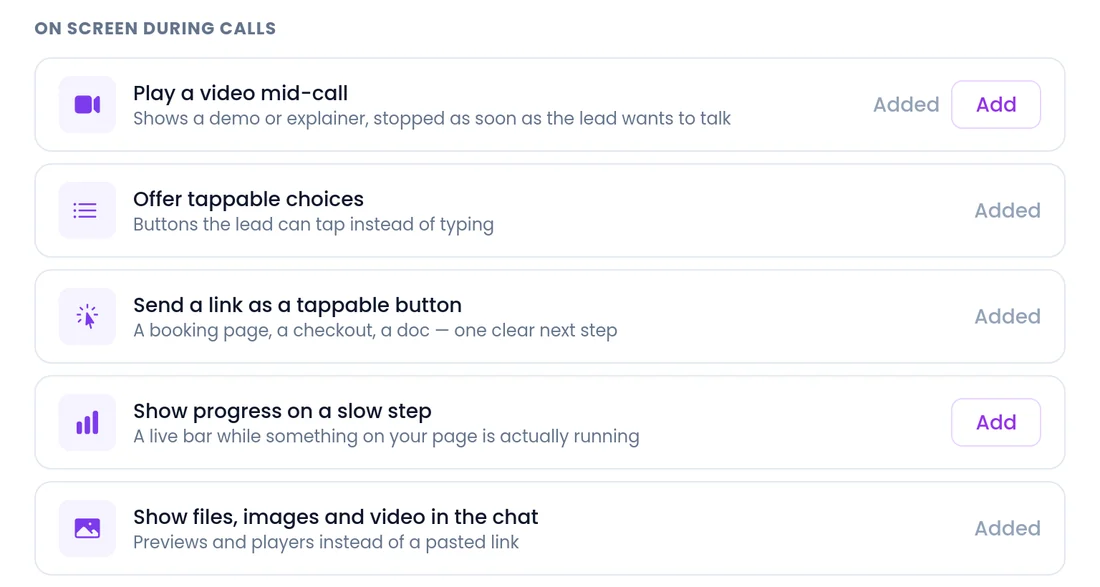
- Setting: Play a video mid-call
- Video and web call agents
The visitor shares a screen
The visitor shares their screen or camera during the call.
- The agent sees snapshots and talks about them
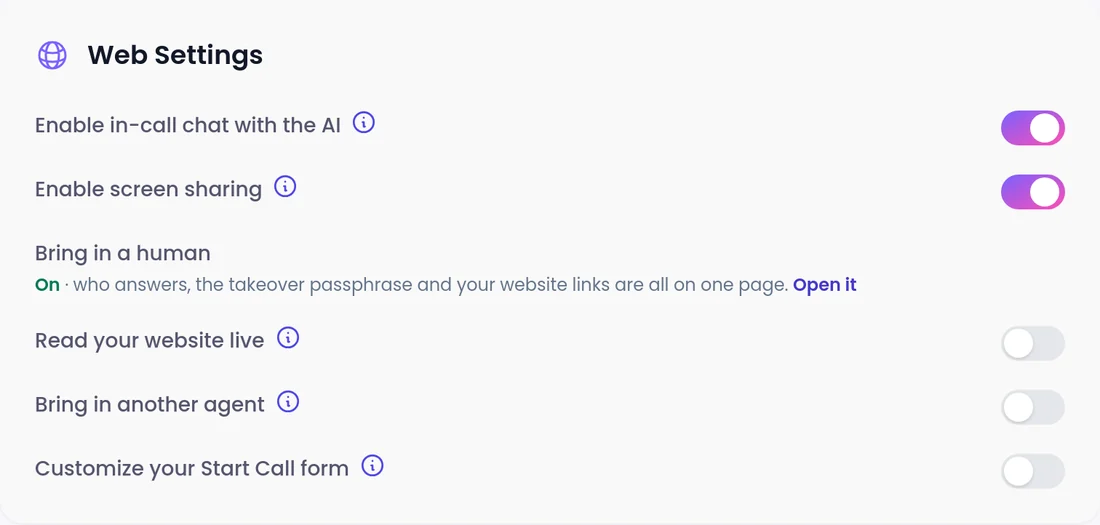
- Setting: Enable screen sharing
- Web agents
Your demo videos
Show your product without leaving the call
You add your own product demo or explainer videos. When one fits the moment, the agent shares it on screen. It plays the recording; it does not operate your product live.
- Give each video a clear title so the agent picks the right one.
- Say in the instructions when each demo helps, for example "show the setup demo when someone asks how onboarding works".
- When the lead is ready for a person, the agent can bring a rep into the same call.
How do you set it up?
Demo videos are an ability you add. Visitor screen sharing is a switch in the agent's settings.
- 1
Add the ability
Open the agent, go to Automations > Add abilities and, under On screen during calls, choose Play a video mid-call.
- 2
Add and name your demos
Upload your demo videos and give each one a title that matches how buyers ask.
- 3
Tell the agent when
Say in the instructions which demo helps with which question.
- 4
Check screen sharing
Enable screen sharing is on by default for Web agents. Leave it on, or switch it off for this agent.
- 5
Run a test call
Ask the questions that should trigger each demo, then share your own screen and ask about it.
What should you know before you launch?
Browser calls only
Not available on phone calls or on chat-only agents.
Keep demos current
The agent shares the videos you add, so update them when your product changes.
Snapshots
The agent sees snapshots of a shared screen. Ask visitors to stay on the part they want to discuss.
Knowledge videos are separate
Videos in your knowledge base are transcribed so the agent can answer from them. Screen share videos are what the lead watches.
Recording
Conversations are recorded and transcribed so your team can review them.
AI disclosure
You control how the agent introduces itself, including whether it says it is an AI up front, and you can tell it to always answer truthfully when asked.
FAQ
Still wondering about something? Ask us on the call. We'll build your agent while we talk.
Can the agent share a product demo in the middle of a conversation?
Yes. Choose Play a video mid-call under Automations > Add abilities and add your demo videos. The agent shares one on screen by title when it is relevant and stops it when the lead wants to talk.
Can the lead ask questions while the demo plays?
Yes. The agent answers questions as it goes. If the lead starts talking, the video stops so the conversation comes first.
Is visitor screen sharing on by default?
Yes, for Web agents. Enable screen sharing is a per agent setting, and you can switch it off.
Does this work on phone calls?
No. Both options are for browser calls. Phone agents can answer questions and hand off by call transfer.
Does the visitor need to install anything?
No. The call runs in the browser, with no download needed.
See it on a live call
Book a demo and see how an agent shares a product demo on screen and talks about a shared screen on a browser call.