Live lead intent score: see which conversations are hot right now
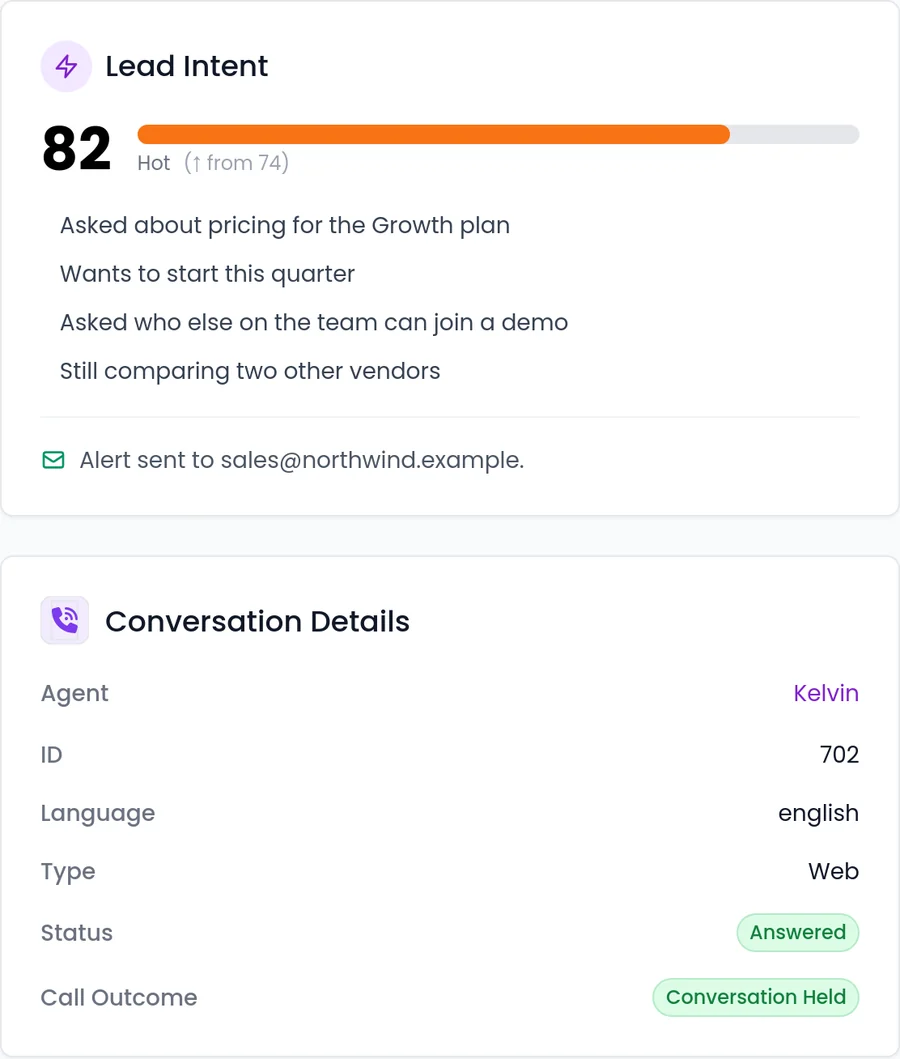
While a conversation runs, SalesCloser's AI scores how interested the lead is on a scale from 0 to 100. Your team sees a live meter with a trend arrow and the reasons behind it, such as "asked about pricing". It works on every channel the agent uses and can alert your team or transfer hot leads.
- Live score from 0 to 100
- Trend and reasons
- Every channel
- Alerts and hot transfers
What it is
What is the live intent score?
The intent score is a quick read on how ready a lead seems to buy, updated as the conversation goes on. Instead of listening to every call or reading every chat, your team can glance at the meter and see which conversations deserve attention now.
Next to the number, you see whether it is rising or falling and the observations behind it, so a rep knows why a lead looks interested, not only that they do.
You turn it on per agent. Once it is on, it works on every channel that agent uses: chat as well as voice, video and phone calls.
What does your team see?
In the live handoff Waiting Room, reps can listen in with a running summary, then step in when the buyer is ready.
Conversation page
A live 0 to 100 meter, a trend arrow and the observations behind the score. For anyone following a conversation.
Email alert
One email with a join link when the score reaches your threshold. For teams who are not watching the dashboard.
Phone transfer
The agent connects the caller to your number at your threshold. For phone teams who want hot leads straight away.
How can the score trigger action?
With the score on, two automations can act while the conversation is still happening. Both trigger when the score reaches a threshold you set, which is 70 by default.
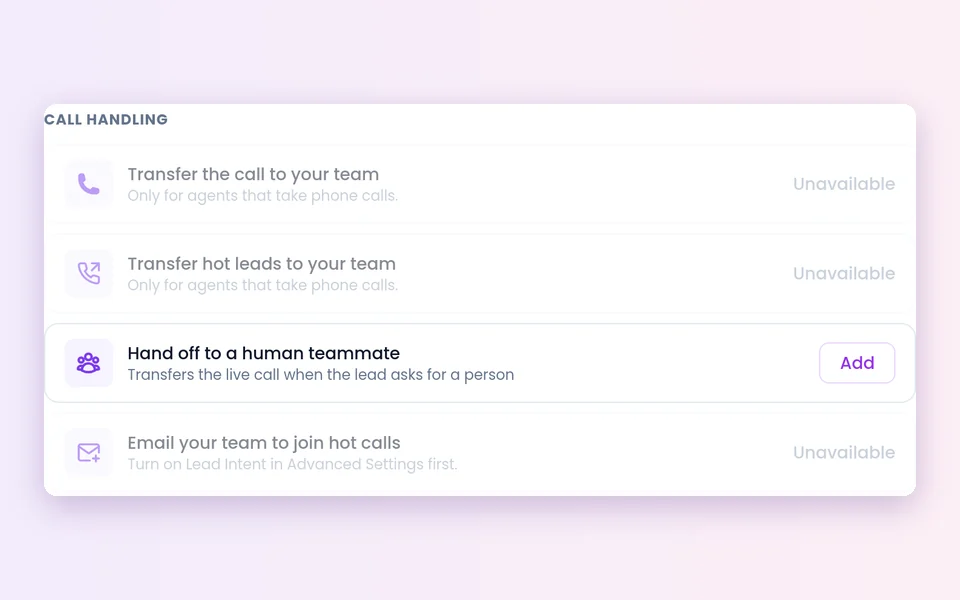
Email your team to join hot calls
Sends your team one email with a join link when the score reaches the threshold.
- Default threshold: 70
Transfer hot leads to your team
The agent tells the caller they are being connected, then transfers the call to your number.
- The rep hears a short spoken briefing first
- More on call transfer
How do you set it up?
- 1
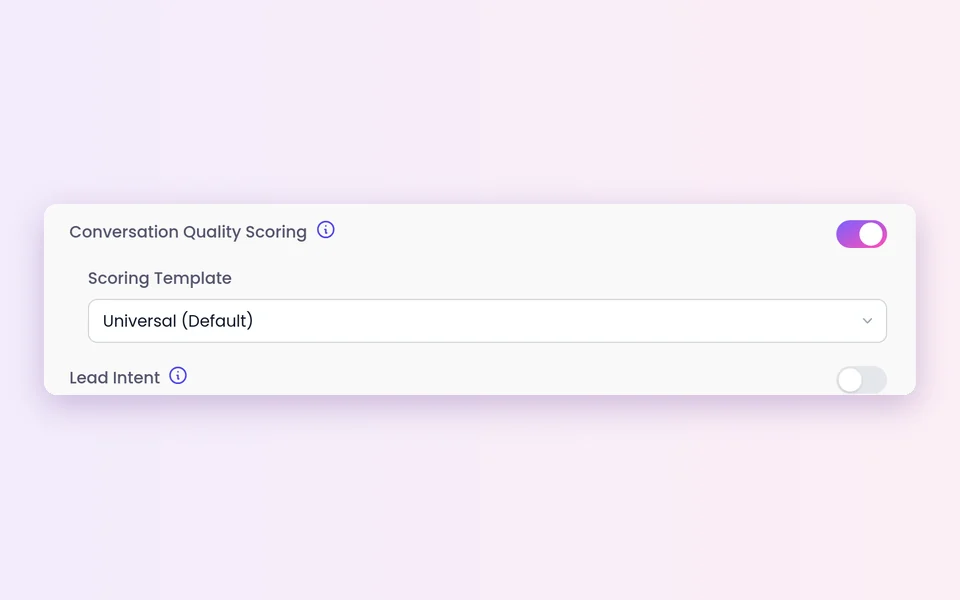
Open Advanced Settings
On the agent.
 2
2Switch on Lead Intent
It is off by default.
- 3
Test and watch the meter
Save, run a test conversation and open it from your conversations.
 4
4Optional: add an automation
Automations > Add abilities > Call handling: Email your team to join hot calls or Transfer hot leads to your team.
- 5
Set the threshold
Keep the default of 70 or set your own, and add where the email or transfer should go.
What should you know before you rely on it?
A signal, not a verdict
Read the score alongside the live summary, the observations and the lead's own words before you act.
Off until you turn it on
Each agent needs Lead Intent switched on in Advanced Settings.
Automations depend on the agent type
The join email is for voice/video and hybrid agents. The hot-lead transfer is for phone agents.
Joining needs a browser call
Reps take over web voice, video and hybrid calls through the Waiting Room. Phone calls are handed off by transfer.
A person still has to be there
An alert or a join link only helps if someone on your team can act on it.
Best practices
Conversations are recorded and transcribed so your team can review them and see what was happening when the score moved.
Start with the default threshold
Use 70 for a few weeks, then raise or lower it based on which alerts led to useful conversations.
Compare the score with outcomes
Each call shows its outcome, such as a booked appointment or a transfer. Check whether high scores match the results you care about.
Read the observations
They show which questions and topics signal interest for your business, which helps when you refine the agent's prompt.
Send alerts to people who can join
A join link in an inbox nobody watches does not help.
Keep the agent able to finish the job
If nobody joins, the agent should still answer, qualify and book a meeting.
FAQ
Still wondering about something? Ask us on the call. We'll build your agent while we talk.
Does the intent score only work on calls?
No. Once Lead Intent is on for an agent, the score works on every channel that agent uses, including chat.
Where do I see the score?
On the conversation page, as a live meter with a trend arrow and the observations behind it.
Can the score alert my team automatically?
Yes. Under Automations > Add abilities > Call handling, Email your team to join hot calls sends one email with a join link when the score reaches your threshold. It works on voice/video and hybrid agents.
Can a phone agent transfer hot leads on its own?
Yes. Transfer hot leads to your team works on phone agents. When the score reaches your threshold, the agent tells the caller they are being connected and transfers the call to your number.
What is the default threshold?
70. You can set a different threshold when you add the automation.
See the score on a live conversation
Book a demo and watch the intent meter move while an agent qualifies a lead for a business like yours.